
diff options
| author | CoprDistGit <infra@openeuler.org> | 2023-05-31 03:36:06 +0000 |
|---|---|---|
| committer | CoprDistGit <infra@openeuler.org> | 2023-05-31 03:36:06 +0000 |
| commit | 995fa3387d1d2d83905c5b8e4732da35ffb027b6 (patch) | |
| tree | aa7d0df0c48407d55732d3d01f5d58f99fbed87c /python-azure-debug-relay.spec | |
| parent | 9cde77372ddfa0df4a6c4fe61bbb2de930a06446 (diff) | |
automatic import of python-azure-debug-relay
Diffstat (limited to 'python-azure-debug-relay.spec')
| -rw-r--r-- | python-azure-debug-relay.spec | 1051 |
1 files changed, 1051 insertions, 0 deletions
diff --git a/python-azure-debug-relay.spec b/python-azure-debug-relay.spec new file mode 100644 index 0000000..9ff0975 --- /dev/null +++ b/python-azure-debug-relay.spec @@ -0,0 +1,1051 @@ +%global _empty_manifest_terminate_build 0 +Name: python-azure-debug-relay +Version: 0.5.1 +Release: 1 +Summary: Azure Debugging Relay: distributed cross-network remote debugging for Python +License: MIT +URL: https://pypi.org/project/azure-debug-relay/ +Source0: https://mirrors.nju.edu.cn/pypi/web/packages/5b/19/b9eb5d2e5a4fdf838c9ff81666479863bb0ef978180cba18e40065efbab3/azure-debug-relay-0.5.1.tar.gz +BuildArch: noarch + +Requires: python3-debugpy + +%description +# Azure Debugging Relay for Python + +Azure Debugging Relay is a [Visual Studio Code](https://code.visualstudio.com/) extension and a Python package for distributed remote debugging. It solves a problem of debugging code running in the cloud and on remote devices, +simultaneously across multiple nodes and between different networks. + +* [Azure Debugging Relay extension](https://marketplace.visualstudio.com/items?itemName=VladKolesnikov-vladkol.azure-debug-relay) on Visual Studio Marketplace +* [azure-debug-relay](https://pypi.org/project/azure-debug-relay/) package on PyPI + +Azure Debugging Relay uses [debugpy](https://github.com/microsoft/debugpy) and [Azure Relay](https://docs.microsoft.com/en-us/azure/azure-relay/relay-what-is-it) service to create a debugging tunnel between 2 machines: + +1. Your local Visual Studio Code debugger in `listen` mode. +1. Your remote code in `attach` mode. + +Both machines can be isolated behind NAT or virtual networks. +Azure Relay maintains a secure tunnel, just as if these VS Code and a remote process you debug are running in the same `localhost` network. +Remote components can run in any cloud, local network, with or without public internet access -- all they need is to be able to connect to Azure Relay resource. + +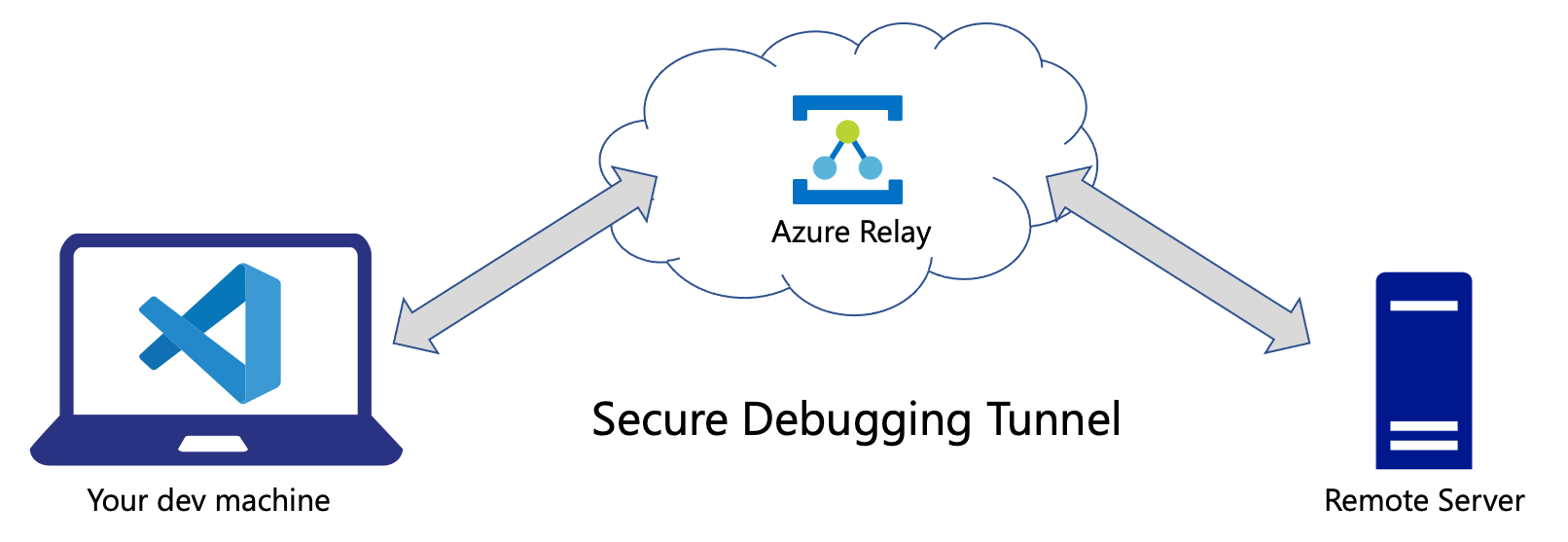 + +The debugging tunnel is handled by **[Azure Relay Bridge](https://github.com/vladkol/azure-relay-bridge)** utility which is downloaded and installed automatically by Azure Debugging Relay. Azure Relay Bridge can maintain secure TCP and UDP tunnels for different purposes. + +> We currently use a private fork of [Azure Relay Bridge](https://github.com/Azure/azure-relay-bridge) repo. + +## Requirements + +* Python 3.6+ +* debugpy 1.2.1+ +* Visual Studio Code 1.34+ (for using VS Code extension) + +Azure Relay Bridge tool is a .NET Core application, so you may need to install `apt-transport-https` and other .NET Core 3.1 Runtime prerequisites on [Linux](https://docs.microsoft.com/en-us/dotnet/core/install/linux) and [Windows](https://docs.microsoft.com/en-us/dotnet/core/install/windows?tabs=netcore31). + +> You don't have to install .NET Runtime itself - Azure Relay Bridge builds are self-contained. + +### Supported Operating Systems + +* Ubuntu 18+ +* Debian 10+ +* macOS 10+ +* Windows 10 + +## Installation + +**On the debugger side (usually your dev machine with Visual Studio code)**: + +> Install [Azure Debugging Relay extension](https://marketplace.visualstudio.com/items?itemName=VladKolesnikov-vladkol.azure-debug-relay) from Visual Studio Marketplace. + +**On the server side**: + +> `python3 -m pip install azure-debug-relay` + +## Usage + +Before you start debugging with Azure Debugging Relay, there are 3 places you configure it: + +1. **Azure Portal or CLI** where you create an Azure Relay resource and an Azure Hybrid Connection in it. +1. **Local dev machine** where you run Visual Studio Code, its Python extension, +and Azure Debugging Relay extension with 2 configuration settings. +1. **Remote machine** where you run the same code files that open locally in VS Code, +with 2 lines that initiate debugging session for a certain request on an execution flow. + +### In Azure Portal + +1. [Create Azure Relay resource](https://ms.portal.azure.com/#create/Microsoft.Relay). Better make one in a region closest to your location. +1. Once created, switch to the resource, and select `Hybrid Connections` option in the vertical panel. +1. Add a hybrid connection (`+ Hybrid Connection` button), give it a memorable name (e.g. `test` 🙂) - this is your **Hybrid Connection Name**. +1. Switch to that new hybrid connection, then select `Shared Access Policies` in the vertical panel. +1. Add a new policy with `Send` and `Listen` permissions. +1. Once created, copy its `Primary Connection String`, this is your **Connection String**. + +#### **Azure CLI version** + +Choose your name instead of `mydebugrelay1` for an Azure Relay resource, and your custom name for Hybrid Connection instead of `debugrelayhc1`. Same applies to `debugRelayResourceGroup` as resource group. + +```cmd +az group create --name debugRelayResourceGroup --location westus2 + +az relay namespace create --resource-group debugRelayResourceGroup --name mydebugrelay1 --location westus2 + +az relay hyco create --resource-group debugRelayResourceGroup --namespace-name mydebugrelay1 --name debugrelayhc1 + +az relay hyco authorization-rule create --resource-group debugRelayResourceGroup --namespace-name mydebugrelay1 --hybrid-connection-name debugrelayhc1 --name sendlisten --rights Send Listen + +az relay hyco authorization-rule keys list --resource-group debugRelayResourceGroup --namespace-name mydebugrelay1 --hybrid-connection-name debugrelayhc1 --name sendlisten +``` + +Last command will show you something like this: + +```json +{ + "keyName": "sendlisten", + "primaryConnectionString": "Endpoint=sb://mydebugrelay1.servicebus.windows.net/;SharedAccessKeyName=sendlisten;SharedAccessKey=REDACTED1;EntityPath=debugrelayhc1", + "primaryKey": "REDACTED1", + "secondaryConnectionString": "Endpoint=sb://mydebugrelay1.servicebus.windows.net/;SharedAccessKeyName=sendlisten;SharedAccessKey=REDACTED2;EntityPath=debugrelayhc1", + "secondaryKey": "REDACTED2" +} +``` + +Use `primaryConnectionString` or `secondaryConnectionString` value as your **Connection String**. + +**Hybrid Connection Name** would be the one you choose instead of `debugrelayhc1`. +</details> + +### Remotely with `remote_server_demo.py` or your code + +Remote Server example (in `samples/simple_demo/remote_server_demo.py`) assumes that Azure Relay credentials will are passes via `.azrelay.json` file in the current directory or via environment variables. Therefore, you have 2 options: + +**Option 1**: Create `.azrelay.json` file in your workspace directory root or whatever directory will be "current", +and set 2 variables: + +1. `AZRELAY_CONNECTION_STRING` to your **Connection String**. +1. `AZRELAY_CONNECTION_NAME` to your **Hybrid Connection Name**. + +For example: + +```json +{ + "AZRELAY_CONNECTION_STRING": "Endpoint=sb://mydebugrelay1.servicebus.windows.net/;SharedAccessKeyName=sendlisten;SharedAccessKey=REDACTED1;EntityPath=debugrelayhc1", + "AZRELAY_CONNECTION_NAME": "debugrelayhc1" +} +``` + +Make sure you add `.azrelay.json` to `.gitignore` so won't be committed. + +**Option 2**: You can assign these 2 variables as environment variables: `AZRELAY_CONNECTION_STRING` and `AZRELAY_CONNECTION_NAME` instead. + +### Prepare local Visual Studio Code + +Use `.azrelay.json` file in the root of your workspace as above or `.vscode/settings.json` with the following settings (actual values are ones you have): + +```json +{ + "azure-debug-relay.azrelay-connection-string": "Endpoint=sb://your-relay.servicebus.windows.net/;SharedAccessKeyName=key_name;SharedAccessKey=REDACTED;EntityPath=test", + + "azure-debug-relay.azrelay-connection-name": "test", +} +``` + +> Whenever Azure Debugging Relay VS Code extension detects non-empty `azure-debug-relay.hybrid-connection-string` and `azure-debug-relay.hybrid-connection-name` settings (`vscode/settings.json`) or `AZRELAY_CONNECTION_STRING` and `AZRELAY_CONNECTION_NAME` in `.azrelay.json` file, it launches Azure Relay Bridge every time a debugging session with debugpy in `listen` mode is about to begin. If extension settings are not empty and `.azrelay.json` is present, Azure Relay Bridge prefers values from the extension settings (`vscode/settings.json`). + +Visual Studio Code extension ignores `AZRELAY_CONNECTION_STRING` and `AZRELAY_CONNECTION_NAME` environment variables. + +### Start debugging in Visual Studio Code + +This step must be done on your dev machine in Visual Studio Code before launching the remote code. + +1. Open `remote_server_demo.py` and put a breakpoint in `do_work()` function. +1. Makes sure your `.vscode/launch.json` has `Python: Listen 5678` configuration as in this repo's `.vscode/launch.json`. +1. Start debugging in your local Visual Studio Code in `Python: Listen 5678` configuration. + +Notice how the debugger maps paths on the local and the remote machines. +If your code has a different structure remotely, you may need to provide more sophisticated path mappings. Here is that piece in `.vscode/launch.json`: + +```json +"pathMappings": [ + { + "localRoot": "${workspaceFolder}", + "remoteRoot": "." + } +] +``` + +It tells VS Code that the workspace directory locally is mapped to the "current" directory remotely. + +When the debugger looks goes through a file remotely, it needs to find the corresponding file in your local VS Code workspace. +When debugging `remote_server_demo.py`, the debugger maps `./samples/simple_demo/remote_server_demo.py` remotely to `${workspaceFolder}/samples/simple_demo/remote_server_demo.py` locally. + +### Launch the example on the remote machine + +1. Clone the repo. +1. Start `python3 ./samples/simple_demo/remote_server_demo.py --debug=attach`. Notice that current directory must contain `.azrelay.json` file unless configured with environment variables. + +> Terminal session where you start #2 must have the repo's directory as current directory - for a reason of mapping local and remote directories. + +If everything works as it's supposed to, you will hit a breakpoint in your local Visual Studio Code. + +## Azure Debugging Relay Python API + +`remote_server_demo.py` shows how you can use Azure Debugging Relay (azure-debug-relay package) with your code. + +**azdebugrelay** module contains DebugRelay class that install and launches Azure Relay Bridge: + +```python +from azdebugrelay import DebugRelay, DebugMode, debugpy_connect_with_timeout + +access_key_or_connection_string = "AZURE RELAY HYBRID CONNECTION STRING OR ACCESS KEY" +relay_connection_name = "HYBRID CONNECTION NAME" # your Hybrid Connection name +debug_mode = DebugMode.Connect # or DebugMode.WaitForConnection if connecting from another end +hybrid_connection_url = "HYBRID CONNECTION URL" # can be None if access_key_or_connection_string is a connection string +host = "127.0.0.1" # local hostname or ip address the debugger starts on +port = 5678 # any available port that you can use within your machine, may be a list of multiple ports +debugpy_timeout = 15 # 15 seconds for debugpy to connect + +debug_relay = DebugRelay(access_key_or_connection_string, relay_connection_name, debug_mode, hybrid_connection_url, host, port) +debug_relay.open() + +# attach to a remote debugger (usually from remote server code) with debug_mode = DebugMode.Connect +debugpy_connect_with_timeout(host, port, debugpy_timeout) # use instead of debugpy.connect +# if debug_mode = DebugMode.WaitForConnection, we are going to listen instead +# debugpy.listen((host, port)) +# if debug_mode = DebugMode.WaitForConnection, you can start DebugRelay on multiple ports (ports parameter is a list) +# debugpy.listen must be called with each of these ports + +# Debug, debug, debug +# ... +# ... + +debug_relay.close() +``` + +* `access_key_or_connection_string` - SAS Policy key or Connection String for Azure Relay Hybrid Connection. Must have `Send` and `Listen` permissions +* `relay_connection_name` - name of the Hybrid Connection +* `debug_mode` - debug connection mode. `DebugMode.WaitForConnection` when starting in listening mode, `DebugMode.Connect` for attaching to a remote debugger. +* `hybrid_connection_url` - Hybrid Connection URL. Required when access_key_or_connection_string as an access key, otherwise is ignored and may be None. +* `host` - Local hostname or ip address the debugger starts on, `127.0.0.1` by default +* `port` - debugging port, `5678` by default + +> We added `debugpy_connect_with_timeout` method on top of **debugpy.connect()**. +It accepts `connect_timeout_seconds` parameter - how long it should wait for `debugpy.connect()` to connect. +If the connection is not successfully made within the timeout, +the debugging session aborts, and that can be handled in your code: +`debugpy_connect_with_timeout()` returns `True` if the connection was successful, and `False` otherwise. + +Notice that DebugRelay accepts multiple ports to work with (**`ports` parameter is a list**). +That's because Azure Relay Bridge support forwarding on multiple ports. +This feature is primarily used by DebugRelay internally +for [Simultaneous distributed debugging](#simultaneous-distributed-debugging). + +### Azure Machine Learning samples + +**Simple Azure ML sample** is located in `samples/azure_ml_simple` directory. + +It has 2 components: + +1. `deploy_and_run.py` script that deploys and launches an Azure ML pipeline with a single step. +2. `steps/train.py` script which contains that simple step. + +Look at the [sample's readme file](samples/azure_ml_simple/README.md). + +**Advanced Azure Machine Learning sample** is located in `samples/azure_ml_advanced`, and demonstrates a complex debugging scenario with parallel steps. + +Look at the [advanced sample's readme file](samples/azure_ml_advanced/README.md). + +## Simultaneous distributed debugging + +You can debug multiple simultaneously running remote nodes using different ports. +Each execution flow you want to debug must use a separate port - both locally and remotely. + +In Visual Studio code, it is achievable via so called "[compound launch configurations](https://code.visualstudio.com/docs/editor/debugging#_compound-launch-configurations)". +Compound launch configurations combine multiple launch configurations, and therefore start them at the same time. + +Each launch configuration must be a Python `listen` configuration with a unique name and port: + +```json +{ + "name": "Python: Listen 5678", + "type": "python", + "request": "attach", + "listen": { + "host": "127.0.0.1", + "port": 5678 + }, + "pathMappings": [ + { + "localRoot": "${workspaceFolder}", + "remoteRoot": "." + } + ] +} +``` + +You need as many launch configurations as number of simultaneous execution flows or nodes you'd like to debug. +Then you combine them in `.vscode/launch.json` to as a compound: + +```json +"compounds": [ + { + "name": "Python: AML Advanced 3 Listeners", + "configurations": [ + "Python: Listen 5678", + "Python: Listen 5679", + "Python: Listen 5680" + ] + } +] +``` + +Remotely, each node you debug should be aware of the port number it should use. +That port number must be passed to `DebugRelay` object and `debugpy_connect_with_timeout()`. + +## Troubleshooting + +Why using [Azure Relay Bridge](https://github.com/Azure/azure-relay-bridge) which is a .NET Core application that we have to install and use via `subprocess` calls? + +Reasons: + +1. Azure Relay has SDKs for .NET, Java, and Node. [No Python SDK or examples](https://github.com/Azure/azure-relay/issues/28#issuecomment-390778193). +1. Azure Relay Bridge does a lot of things we have to implement otherwise. It is a great tool that can help you connecting different networks for many purposes: for RDP, SSH and other protocols over TCP or UDP. + +A [private fork](https://github.com/vladkol/azure-relay-bridge) we are currently using is only to provide .NET Core 3.1 builds of the most recent code. There is a pending pul-requests: [one](https://github.com/Azure/azure-relay-bridge/pull/22) and [two](https://github.com/Azure/azure-relay-bridge/pull/19). + +### Known issues + +> **On macOS, there may be a situation when Azure Relay Bridge (`azbridge`) cannot connect when creating a local forwarder** (`-L` option). + +**Reason**: .NET Core wants you to add your Computer Name to `/etc/hosts` file, and make sure the hostname is configured. + +**Workaround**: Make necessary edits of `/etc/hosts` file, and configure hostname: + +1. Look for your computer's name in `Settings → Sharing`. +1. Run the following command: `scutil --set HostName "your-computer-name"`. (**replace `your-computer-name` with your computer's name**) +1. Open `/etc/hosts` in a text editor in *sudo* mode (VS Code can save it later in *sudo* mode). +1. Add the following line (**replace `your-computer-name` with your computer's name**). Save the file. + +```text +127.0.0.1 your-computer-name +``` + +> **I launched the debugger as described and nothing happened** + +**Reason**: you *probably* didn't put a breakpoint in your VS Code locally. Make sure that breakpoint is in a place that your server process actually runs through. + +> **I do everything right, but nothing works** + +**Reason**: Stop all debugging sessions (if any). Kill all `azbridge` processes locally and remotely. Try again. + +Doesn't help? [File an issue](https://github.com/vladkol/azure-debug-relay/issues/new)! Thank you! + + +%package -n python3-azure-debug-relay +Summary: Azure Debugging Relay: distributed cross-network remote debugging for Python +Provides: python-azure-debug-relay +BuildRequires: python3-devel +BuildRequires: python3-setuptools +BuildRequires: python3-pip +%description -n python3-azure-debug-relay +# Azure Debugging Relay for Python + +Azure Debugging Relay is a [Visual Studio Code](https://code.visualstudio.com/) extension and a Python package for distributed remote debugging. It solves a problem of debugging code running in the cloud and on remote devices, +simultaneously across multiple nodes and between different networks. + +* [Azure Debugging Relay extension](https://marketplace.visualstudio.com/items?itemName=VladKolesnikov-vladkol.azure-debug-relay) on Visual Studio Marketplace +* [azure-debug-relay](https://pypi.org/project/azure-debug-relay/) package on PyPI + +Azure Debugging Relay uses [debugpy](https://github.com/microsoft/debugpy) and [Azure Relay](https://docs.microsoft.com/en-us/azure/azure-relay/relay-what-is-it) service to create a debugging tunnel between 2 machines: + +1. Your local Visual Studio Code debugger in `listen` mode. +1. Your remote code in `attach` mode. + +Both machines can be isolated behind NAT or virtual networks. +Azure Relay maintains a secure tunnel, just as if these VS Code and a remote process you debug are running in the same `localhost` network. +Remote components can run in any cloud, local network, with or without public internet access -- all they need is to be able to connect to Azure Relay resource. + + + +The debugging tunnel is handled by **[Azure Relay Bridge](https://github.com/vladkol/azure-relay-bridge)** utility which is downloaded and installed automatically by Azure Debugging Relay. Azure Relay Bridge can maintain secure TCP and UDP tunnels for different purposes. + +> We currently use a private fork of [Azure Relay Bridge](https://github.com/Azure/azure-relay-bridge) repo. + +## Requirements + +* Python 3.6+ +* debugpy 1.2.1+ +* Visual Studio Code 1.34+ (for using VS Code extension) + +Azure Relay Bridge tool is a .NET Core application, so you may need to install `apt-transport-https` and other .NET Core 3.1 Runtime prerequisites on [Linux](https://docs.microsoft.com/en-us/dotnet/core/install/linux) and [Windows](https://docs.microsoft.com/en-us/dotnet/core/install/windows?tabs=netcore31). + +> You don't have to install .NET Runtime itself - Azure Relay Bridge builds are self-contained. + +### Supported Operating Systems + +* Ubuntu 18+ +* Debian 10+ +* macOS 10+ +* Windows 10 + +## Installation + +**On the debugger side (usually your dev machine with Visual Studio code)**: + +> Install [Azure Debugging Relay extension](https://marketplace.visualstudio.com/items?itemName=VladKolesnikov-vladkol.azure-debug-relay) from Visual Studio Marketplace. + +**On the server side**: + +> `python3 -m pip install azure-debug-relay` + +## Usage + +Before you start debugging with Azure Debugging Relay, there are 3 places you configure it: + +1. **Azure Portal or CLI** where you create an Azure Relay resource and an Azure Hybrid Connection in it. +1. **Local dev machine** where you run Visual Studio Code, its Python extension, +and Azure Debugging Relay extension with 2 configuration settings. +1. **Remote machine** where you run the same code files that open locally in VS Code, +with 2 lines that initiate debugging session for a certain request on an execution flow. + +### In Azure Portal + +1. [Create Azure Relay resource](https://ms.portal.azure.com/#create/Microsoft.Relay). Better make one in a region closest to your location. +1. Once created, switch to the resource, and select `Hybrid Connections` option in the vertical panel. +1. Add a hybrid connection (`+ Hybrid Connection` button), give it a memorable name (e.g. `test` 🙂) - this is your **Hybrid Connection Name**. +1. Switch to that new hybrid connection, then select `Shared Access Policies` in the vertical panel. +1. Add a new policy with `Send` and `Listen` permissions. +1. Once created, copy its `Primary Connection String`, this is your **Connection String**. + +#### **Azure CLI version** + +Choose your name instead of `mydebugrelay1` for an Azure Relay resource, and your custom name for Hybrid Connection instead of `debugrelayhc1`. Same applies to `debugRelayResourceGroup` as resource group. + +```cmd +az group create --name debugRelayResourceGroup --location westus2 + +az relay namespace create --resource-group debugRelayResourceGroup --name mydebugrelay1 --location westus2 + +az relay hyco create --resource-group debugRelayResourceGroup --namespace-name mydebugrelay1 --name debugrelayhc1 + +az relay hyco authorization-rule create --resource-group debugRelayResourceGroup --namespace-name mydebugrelay1 --hybrid-connection-name debugrelayhc1 --name sendlisten --rights Send Listen + +az relay hyco authorization-rule keys list --resource-group debugRelayResourceGroup --namespace-name mydebugrelay1 --hybrid-connection-name debugrelayhc1 --name sendlisten +``` + +Last command will show you something like this: + +```json +{ + "keyName": "sendlisten", + "primaryConnectionString": "Endpoint=sb://mydebugrelay1.servicebus.windows.net/;SharedAccessKeyName=sendlisten;SharedAccessKey=REDACTED1;EntityPath=debugrelayhc1", + "primaryKey": "REDACTED1", + "secondaryConnectionString": "Endpoint=sb://mydebugrelay1.servicebus.windows.net/;SharedAccessKeyName=sendlisten;SharedAccessKey=REDACTED2;EntityPath=debugrelayhc1", + "secondaryKey": "REDACTED2" +} +``` + +Use `primaryConnectionString` or `secondaryConnectionString` value as your **Connection String**. + +**Hybrid Connection Name** would be the one you choose instead of `debugrelayhc1`. +</details> + +### Remotely with `remote_server_demo.py` or your code + +Remote Server example (in `samples/simple_demo/remote_server_demo.py`) assumes that Azure Relay credentials will are passes via `.azrelay.json` file in the current directory or via environment variables. Therefore, you have 2 options: + +**Option 1**: Create `.azrelay.json` file in your workspace directory root or whatever directory will be "current", +and set 2 variables: + +1. `AZRELAY_CONNECTION_STRING` to your **Connection String**. +1. `AZRELAY_CONNECTION_NAME` to your **Hybrid Connection Name**. + +For example: + +```json +{ + "AZRELAY_CONNECTION_STRING": "Endpoint=sb://mydebugrelay1.servicebus.windows.net/;SharedAccessKeyName=sendlisten;SharedAccessKey=REDACTED1;EntityPath=debugrelayhc1", + "AZRELAY_CONNECTION_NAME": "debugrelayhc1" +} +``` + +Make sure you add `.azrelay.json` to `.gitignore` so won't be committed. + +**Option 2**: You can assign these 2 variables as environment variables: `AZRELAY_CONNECTION_STRING` and `AZRELAY_CONNECTION_NAME` instead. + +### Prepare local Visual Studio Code + +Use `.azrelay.json` file in the root of your workspace as above or `.vscode/settings.json` with the following settings (actual values are ones you have): + +```json +{ + "azure-debug-relay.azrelay-connection-string": "Endpoint=sb://your-relay.servicebus.windows.net/;SharedAccessKeyName=key_name;SharedAccessKey=REDACTED;EntityPath=test", + + "azure-debug-relay.azrelay-connection-name": "test", +} +``` + +> Whenever Azure Debugging Relay VS Code extension detects non-empty `azure-debug-relay.hybrid-connection-string` and `azure-debug-relay.hybrid-connection-name` settings (`vscode/settings.json`) or `AZRELAY_CONNECTION_STRING` and `AZRELAY_CONNECTION_NAME` in `.azrelay.json` file, it launches Azure Relay Bridge every time a debugging session with debugpy in `listen` mode is about to begin. If extension settings are not empty and `.azrelay.json` is present, Azure Relay Bridge prefers values from the extension settings (`vscode/settings.json`). + +Visual Studio Code extension ignores `AZRELAY_CONNECTION_STRING` and `AZRELAY_CONNECTION_NAME` environment variables. + +### Start debugging in Visual Studio Code + +This step must be done on your dev machine in Visual Studio Code before launching the remote code. + +1. Open `remote_server_demo.py` and put a breakpoint in `do_work()` function. +1. Makes sure your `.vscode/launch.json` has `Python: Listen 5678` configuration as in this repo's `.vscode/launch.json`. +1. Start debugging in your local Visual Studio Code in `Python: Listen 5678` configuration. + +Notice how the debugger maps paths on the local and the remote machines. +If your code has a different structure remotely, you may need to provide more sophisticated path mappings. Here is that piece in `.vscode/launch.json`: + +```json +"pathMappings": [ + { + "localRoot": "${workspaceFolder}", + "remoteRoot": "." + } +] +``` + +It tells VS Code that the workspace directory locally is mapped to the "current" directory remotely. + +When the debugger looks goes through a file remotely, it needs to find the corresponding file in your local VS Code workspace. +When debugging `remote_server_demo.py`, the debugger maps `./samples/simple_demo/remote_server_demo.py` remotely to `${workspaceFolder}/samples/simple_demo/remote_server_demo.py` locally. + +### Launch the example on the remote machine + +1. Clone the repo. +1. Start `python3 ./samples/simple_demo/remote_server_demo.py --debug=attach`. Notice that current directory must contain `.azrelay.json` file unless configured with environment variables. + +> Terminal session where you start #2 must have the repo's directory as current directory - for a reason of mapping local and remote directories. + +If everything works as it's supposed to, you will hit a breakpoint in your local Visual Studio Code. + +## Azure Debugging Relay Python API + +`remote_server_demo.py` shows how you can use Azure Debugging Relay (azure-debug-relay package) with your code. + +**azdebugrelay** module contains DebugRelay class that install and launches Azure Relay Bridge: + +```python +from azdebugrelay import DebugRelay, DebugMode, debugpy_connect_with_timeout + +access_key_or_connection_string = "AZURE RELAY HYBRID CONNECTION STRING OR ACCESS KEY" +relay_connection_name = "HYBRID CONNECTION NAME" # your Hybrid Connection name +debug_mode = DebugMode.Connect # or DebugMode.WaitForConnection if connecting from another end +hybrid_connection_url = "HYBRID CONNECTION URL" # can be None if access_key_or_connection_string is a connection string +host = "127.0.0.1" # local hostname or ip address the debugger starts on +port = 5678 # any available port that you can use within your machine, may be a list of multiple ports +debugpy_timeout = 15 # 15 seconds for debugpy to connect + +debug_relay = DebugRelay(access_key_or_connection_string, relay_connection_name, debug_mode, hybrid_connection_url, host, port) +debug_relay.open() + +# attach to a remote debugger (usually from remote server code) with debug_mode = DebugMode.Connect +debugpy_connect_with_timeout(host, port, debugpy_timeout) # use instead of debugpy.connect +# if debug_mode = DebugMode.WaitForConnection, we are going to listen instead +# debugpy.listen((host, port)) +# if debug_mode = DebugMode.WaitForConnection, you can start DebugRelay on multiple ports (ports parameter is a list) +# debugpy.listen must be called with each of these ports + +# Debug, debug, debug +# ... +# ... + +debug_relay.close() +``` + +* `access_key_or_connection_string` - SAS Policy key or Connection String for Azure Relay Hybrid Connection. Must have `Send` and `Listen` permissions +* `relay_connection_name` - name of the Hybrid Connection +* `debug_mode` - debug connection mode. `DebugMode.WaitForConnection` when starting in listening mode, `DebugMode.Connect` for attaching to a remote debugger. +* `hybrid_connection_url` - Hybrid Connection URL. Required when access_key_or_connection_string as an access key, otherwise is ignored and may be None. +* `host` - Local hostname or ip address the debugger starts on, `127.0.0.1` by default +* `port` - debugging port, `5678` by default + +> We added `debugpy_connect_with_timeout` method on top of **debugpy.connect()**. +It accepts `connect_timeout_seconds` parameter - how long it should wait for `debugpy.connect()` to connect. +If the connection is not successfully made within the timeout, +the debugging session aborts, and that can be handled in your code: +`debugpy_connect_with_timeout()` returns `True` if the connection was successful, and `False` otherwise. + +Notice that DebugRelay accepts multiple ports to work with (**`ports` parameter is a list**). +That's because Azure Relay Bridge support forwarding on multiple ports. +This feature is primarily used by DebugRelay internally +for [Simultaneous distributed debugging](#simultaneous-distributed-debugging). + +### Azure Machine Learning samples + +**Simple Azure ML sample** is located in `samples/azure_ml_simple` directory. + +It has 2 components: + +1. `deploy_and_run.py` script that deploys and launches an Azure ML pipeline with a single step. +2. `steps/train.py` script which contains that simple step. + +Look at the [sample's readme file](samples/azure_ml_simple/README.md). + +**Advanced Azure Machine Learning sample** is located in `samples/azure_ml_advanced`, and demonstrates a complex debugging scenario with parallel steps. + +Look at the [advanced sample's readme file](samples/azure_ml_advanced/README.md). + +## Simultaneous distributed debugging + +You can debug multiple simultaneously running remote nodes using different ports. +Each execution flow you want to debug must use a separate port - both locally and remotely. + +In Visual Studio code, it is achievable via so called "[compound launch configurations](https://code.visualstudio.com/docs/editor/debugging#_compound-launch-configurations)". +Compound launch configurations combine multiple launch configurations, and therefore start them at the same time. + +Each launch configuration must be a Python `listen` configuration with a unique name and port: + +```json +{ + "name": "Python: Listen 5678", + "type": "python", + "request": "attach", + "listen": { + "host": "127.0.0.1", + "port": 5678 + }, + "pathMappings": [ + { + "localRoot": "${workspaceFolder}", + "remoteRoot": "." + } + ] +} +``` + +You need as many launch configurations as number of simultaneous execution flows or nodes you'd like to debug. +Then you combine them in `.vscode/launch.json` to as a compound: + +```json +"compounds": [ + { + "name": "Python: AML Advanced 3 Listeners", + "configurations": [ + "Python: Listen 5678", + "Python: Listen 5679", + "Python: Listen 5680" + ] + } +] +``` + +Remotely, each node you debug should be aware of the port number it should use. +That port number must be passed to `DebugRelay` object and `debugpy_connect_with_timeout()`. + +## Troubleshooting + +Why using [Azure Relay Bridge](https://github.com/Azure/azure-relay-bridge) which is a .NET Core application that we have to install and use via `subprocess` calls? + +Reasons: + +1. Azure Relay has SDKs for .NET, Java, and Node. [No Python SDK or examples](https://github.com/Azure/azure-relay/issues/28#issuecomment-390778193). +1. Azure Relay Bridge does a lot of things we have to implement otherwise. It is a great tool that can help you connecting different networks for many purposes: for RDP, SSH and other protocols over TCP or UDP. + +A [private fork](https://github.com/vladkol/azure-relay-bridge) we are currently using is only to provide .NET Core 3.1 builds of the most recent code. There is a pending pul-requests: [one](https://github.com/Azure/azure-relay-bridge/pull/22) and [two](https://github.com/Azure/azure-relay-bridge/pull/19). + +### Known issues + +> **On macOS, there may be a situation when Azure Relay Bridge (`azbridge`) cannot connect when creating a local forwarder** (`-L` option). + +**Reason**: .NET Core wants you to add your Computer Name to `/etc/hosts` file, and make sure the hostname is configured. + +**Workaround**: Make necessary edits of `/etc/hosts` file, and configure hostname: + +1. Look for your computer's name in `Settings → Sharing`. +1. Run the following command: `scutil --set HostName "your-computer-name"`. (**replace `your-computer-name` with your computer's name**) +1. Open `/etc/hosts` in a text editor in *sudo* mode (VS Code can save it later in *sudo* mode). +1. Add the following line (**replace `your-computer-name` with your computer's name**). Save the file. + +```text +127.0.0.1 your-computer-name +``` + +> **I launched the debugger as described and nothing happened** + +**Reason**: you *probably* didn't put a breakpoint in your VS Code locally. Make sure that breakpoint is in a place that your server process actually runs through. + +> **I do everything right, but nothing works** + +**Reason**: Stop all debugging sessions (if any). Kill all `azbridge` processes locally and remotely. Try again. + +Doesn't help? [File an issue](https://github.com/vladkol/azure-debug-relay/issues/new)! Thank you! + + +%package help +Summary: Development documents and examples for azure-debug-relay +Provides: python3-azure-debug-relay-doc +%description help +# Azure Debugging Relay for Python + +Azure Debugging Relay is a [Visual Studio Code](https://code.visualstudio.com/) extension and a Python package for distributed remote debugging. It solves a problem of debugging code running in the cloud and on remote devices, +simultaneously across multiple nodes and between different networks. + +* [Azure Debugging Relay extension](https://marketplace.visualstudio.com/items?itemName=VladKolesnikov-vladkol.azure-debug-relay) on Visual Studio Marketplace +* [azure-debug-relay](https://pypi.org/project/azure-debug-relay/) package on PyPI + +Azure Debugging Relay uses [debugpy](https://github.com/microsoft/debugpy) and [Azure Relay](https://docs.microsoft.com/en-us/azure/azure-relay/relay-what-is-it) service to create a debugging tunnel between 2 machines: + +1. Your local Visual Studio Code debugger in `listen` mode. +1. Your remote code in `attach` mode. + +Both machines can be isolated behind NAT or virtual networks. +Azure Relay maintains a secure tunnel, just as if these VS Code and a remote process you debug are running in the same `localhost` network. +Remote components can run in any cloud, local network, with or without public internet access -- all they need is to be able to connect to Azure Relay resource. + + + +The debugging tunnel is handled by **[Azure Relay Bridge](https://github.com/vladkol/azure-relay-bridge)** utility which is downloaded and installed automatically by Azure Debugging Relay. Azure Relay Bridge can maintain secure TCP and UDP tunnels for different purposes. + +> We currently use a private fork of [Azure Relay Bridge](https://github.com/Azure/azure-relay-bridge) repo. + +## Requirements + +* Python 3.6+ +* debugpy 1.2.1+ +* Visual Studio Code 1.34+ (for using VS Code extension) + +Azure Relay Bridge tool is a .NET Core application, so you may need to install `apt-transport-https` and other .NET Core 3.1 Runtime prerequisites on [Linux](https://docs.microsoft.com/en-us/dotnet/core/install/linux) and [Windows](https://docs.microsoft.com/en-us/dotnet/core/install/windows?tabs=netcore31). + +> You don't have to install .NET Runtime itself - Azure Relay Bridge builds are self-contained. + +### Supported Operating Systems + +* Ubuntu 18+ +* Debian 10+ +* macOS 10+ +* Windows 10 + +## Installation + +**On the debugger side (usually your dev machine with Visual Studio code)**: + +> Install [Azure Debugging Relay extension](https://marketplace.visualstudio.com/items?itemName=VladKolesnikov-vladkol.azure-debug-relay) from Visual Studio Marketplace. + +**On the server side**: + +> `python3 -m pip install azure-debug-relay` + +## Usage + +Before you start debugging with Azure Debugging Relay, there are 3 places you configure it: + +1. **Azure Portal or CLI** where you create an Azure Relay resource and an Azure Hybrid Connection in it. +1. **Local dev machine** where you run Visual Studio Code, its Python extension, +and Azure Debugging Relay extension with 2 configuration settings. +1. **Remote machine** where you run the same code files that open locally in VS Code, +with 2 lines that initiate debugging session for a certain request on an execution flow. + +### In Azure Portal + +1. [Create Azure Relay resource](https://ms.portal.azure.com/#create/Microsoft.Relay). Better make one in a region closest to your location. +1. Once created, switch to the resource, and select `Hybrid Connections` option in the vertical panel. +1. Add a hybrid connection (`+ Hybrid Connection` button), give it a memorable name (e.g. `test` 🙂) - this is your **Hybrid Connection Name**. +1. Switch to that new hybrid connection, then select `Shared Access Policies` in the vertical panel. +1. Add a new policy with `Send` and `Listen` permissions. +1. Once created, copy its `Primary Connection String`, this is your **Connection String**. + +#### **Azure CLI version** + +Choose your name instead of `mydebugrelay1` for an Azure Relay resource, and your custom name for Hybrid Connection instead of `debugrelayhc1`. Same applies to `debugRelayResourceGroup` as resource group. + +```cmd +az group create --name debugRelayResourceGroup --location westus2 + +az relay namespace create --resource-group debugRelayResourceGroup --name mydebugrelay1 --location westus2 + +az relay hyco create --resource-group debugRelayResourceGroup --namespace-name mydebugrelay1 --name debugrelayhc1 + +az relay hyco authorization-rule create --resource-group debugRelayResourceGroup --namespace-name mydebugrelay1 --hybrid-connection-name debugrelayhc1 --name sendlisten --rights Send Listen + +az relay hyco authorization-rule keys list --resource-group debugRelayResourceGroup --namespace-name mydebugrelay1 --hybrid-connection-name debugrelayhc1 --name sendlisten +``` + +Last command will show you something like this: + +```json +{ + "keyName": "sendlisten", + "primaryConnectionString": "Endpoint=sb://mydebugrelay1.servicebus.windows.net/;SharedAccessKeyName=sendlisten;SharedAccessKey=REDACTED1;EntityPath=debugrelayhc1", + "primaryKey": "REDACTED1", + "secondaryConnectionString": "Endpoint=sb://mydebugrelay1.servicebus.windows.net/;SharedAccessKeyName=sendlisten;SharedAccessKey=REDACTED2;EntityPath=debugrelayhc1", + "secondaryKey": "REDACTED2" +} +``` + +Use `primaryConnectionString` or `secondaryConnectionString` value as your **Connection String**. + +**Hybrid Connection Name** would be the one you choose instead of `debugrelayhc1`. +</details> + +### Remotely with `remote_server_demo.py` or your code + +Remote Server example (in `samples/simple_demo/remote_server_demo.py`) assumes that Azure Relay credentials will are passes via `.azrelay.json` file in the current directory or via environment variables. Therefore, you have 2 options: + +**Option 1**: Create `.azrelay.json` file in your workspace directory root or whatever directory will be "current", +and set 2 variables: + +1. `AZRELAY_CONNECTION_STRING` to your **Connection String**. +1. `AZRELAY_CONNECTION_NAME` to your **Hybrid Connection Name**. + +For example: + +```json +{ + "AZRELAY_CONNECTION_STRING": "Endpoint=sb://mydebugrelay1.servicebus.windows.net/;SharedAccessKeyName=sendlisten;SharedAccessKey=REDACTED1;EntityPath=debugrelayhc1", + "AZRELAY_CONNECTION_NAME": "debugrelayhc1" +} +``` + +Make sure you add `.azrelay.json` to `.gitignore` so won't be committed. + +**Option 2**: You can assign these 2 variables as environment variables: `AZRELAY_CONNECTION_STRING` and `AZRELAY_CONNECTION_NAME` instead. + +### Prepare local Visual Studio Code + +Use `.azrelay.json` file in the root of your workspace as above or `.vscode/settings.json` with the following settings (actual values are ones you have): + +```json +{ + "azure-debug-relay.azrelay-connection-string": "Endpoint=sb://your-relay.servicebus.windows.net/;SharedAccessKeyName=key_name;SharedAccessKey=REDACTED;EntityPath=test", + + "azure-debug-relay.azrelay-connection-name": "test", +} +``` + +> Whenever Azure Debugging Relay VS Code extension detects non-empty `azure-debug-relay.hybrid-connection-string` and `azure-debug-relay.hybrid-connection-name` settings (`vscode/settings.json`) or `AZRELAY_CONNECTION_STRING` and `AZRELAY_CONNECTION_NAME` in `.azrelay.json` file, it launches Azure Relay Bridge every time a debugging session with debugpy in `listen` mode is about to begin. If extension settings are not empty and `.azrelay.json` is present, Azure Relay Bridge prefers values from the extension settings (`vscode/settings.json`). + +Visual Studio Code extension ignores `AZRELAY_CONNECTION_STRING` and `AZRELAY_CONNECTION_NAME` environment variables. + +### Start debugging in Visual Studio Code + +This step must be done on your dev machine in Visual Studio Code before launching the remote code. + +1. Open `remote_server_demo.py` and put a breakpoint in `do_work()` function. +1. Makes sure your `.vscode/launch.json` has `Python: Listen 5678` configuration as in this repo's `.vscode/launch.json`. +1. Start debugging in your local Visual Studio Code in `Python: Listen 5678` configuration. + +Notice how the debugger maps paths on the local and the remote machines. +If your code has a different structure remotely, you may need to provide more sophisticated path mappings. Here is that piece in `.vscode/launch.json`: + +```json +"pathMappings": [ + { + "localRoot": "${workspaceFolder}", + "remoteRoot": "." + } +] +``` + +It tells VS Code that the workspace directory locally is mapped to the "current" directory remotely. + +When the debugger looks goes through a file remotely, it needs to find the corresponding file in your local VS Code workspace. +When debugging `remote_server_demo.py`, the debugger maps `./samples/simple_demo/remote_server_demo.py` remotely to `${workspaceFolder}/samples/simple_demo/remote_server_demo.py` locally. + +### Launch the example on the remote machine + +1. Clone the repo. +1. Start `python3 ./samples/simple_demo/remote_server_demo.py --debug=attach`. Notice that current directory must contain `.azrelay.json` file unless configured with environment variables. + +> Terminal session where you start #2 must have the repo's directory as current directory - for a reason of mapping local and remote directories. + +If everything works as it's supposed to, you will hit a breakpoint in your local Visual Studio Code. + +## Azure Debugging Relay Python API + +`remote_server_demo.py` shows how you can use Azure Debugging Relay (azure-debug-relay package) with your code. + +**azdebugrelay** module contains DebugRelay class that install and launches Azure Relay Bridge: + +```python +from azdebugrelay import DebugRelay, DebugMode, debugpy_connect_with_timeout + +access_key_or_connection_string = "AZURE RELAY HYBRID CONNECTION STRING OR ACCESS KEY" +relay_connection_name = "HYBRID CONNECTION NAME" # your Hybrid Connection name +debug_mode = DebugMode.Connect # or DebugMode.WaitForConnection if connecting from another end +hybrid_connection_url = "HYBRID CONNECTION URL" # can be None if access_key_or_connection_string is a connection string +host = "127.0.0.1" # local hostname or ip address the debugger starts on +port = 5678 # any available port that you can use within your machine, may be a list of multiple ports +debugpy_timeout = 15 # 15 seconds for debugpy to connect + +debug_relay = DebugRelay(access_key_or_connection_string, relay_connection_name, debug_mode, hybrid_connection_url, host, port) +debug_relay.open() + +# attach to a remote debugger (usually from remote server code) with debug_mode = DebugMode.Connect +debugpy_connect_with_timeout(host, port, debugpy_timeout) # use instead of debugpy.connect +# if debug_mode = DebugMode.WaitForConnection, we are going to listen instead +# debugpy.listen((host, port)) +# if debug_mode = DebugMode.WaitForConnection, you can start DebugRelay on multiple ports (ports parameter is a list) +# debugpy.listen must be called with each of these ports + +# Debug, debug, debug +# ... +# ... + +debug_relay.close() +``` + +* `access_key_or_connection_string` - SAS Policy key or Connection String for Azure Relay Hybrid Connection. Must have `Send` and `Listen` permissions +* `relay_connection_name` - name of the Hybrid Connection +* `debug_mode` - debug connection mode. `DebugMode.WaitForConnection` when starting in listening mode, `DebugMode.Connect` for attaching to a remote debugger. +* `hybrid_connection_url` - Hybrid Connection URL. Required when access_key_or_connection_string as an access key, otherwise is ignored and may be None. +* `host` - Local hostname or ip address the debugger starts on, `127.0.0.1` by default +* `port` - debugging port, `5678` by default + +> We added `debugpy_connect_with_timeout` method on top of **debugpy.connect()**. +It accepts `connect_timeout_seconds` parameter - how long it should wait for `debugpy.connect()` to connect. +If the connection is not successfully made within the timeout, +the debugging session aborts, and that can be handled in your code: +`debugpy_connect_with_timeout()` returns `True` if the connection was successful, and `False` otherwise. + +Notice that DebugRelay accepts multiple ports to work with (**`ports` parameter is a list**). +That's because Azure Relay Bridge support forwarding on multiple ports. +This feature is primarily used by DebugRelay internally +for [Simultaneous distributed debugging](#simultaneous-distributed-debugging). + +### Azure Machine Learning samples + +**Simple Azure ML sample** is located in `samples/azure_ml_simple` directory. + +It has 2 components: + +1. `deploy_and_run.py` script that deploys and launches an Azure ML pipeline with a single step. +2. `steps/train.py` script which contains that simple step. + +Look at the [sample's readme file](samples/azure_ml_simple/README.md). + +**Advanced Azure Machine Learning sample** is located in `samples/azure_ml_advanced`, and demonstrates a complex debugging scenario with parallel steps. + +Look at the [advanced sample's readme file](samples/azure_ml_advanced/README.md). + +## Simultaneous distributed debugging + +You can debug multiple simultaneously running remote nodes using different ports. +Each execution flow you want to debug must use a separate port - both locally and remotely. + +In Visual Studio code, it is achievable via so called "[compound launch configurations](https://code.visualstudio.com/docs/editor/debugging#_compound-launch-configurations)". +Compound launch configurations combine multiple launch configurations, and therefore start them at the same time. + +Each launch configuration must be a Python `listen` configuration with a unique name and port: + +```json +{ + "name": "Python: Listen 5678", + "type": "python", + "request": "attach", + "listen": { + "host": "127.0.0.1", + "port": 5678 + }, + "pathMappings": [ + { + "localRoot": "${workspaceFolder}", + "remoteRoot": "." + } + ] +} +``` + +You need as many launch configurations as number of simultaneous execution flows or nodes you'd like to debug. +Then you combine them in `.vscode/launch.json` to as a compound: + +```json +"compounds": [ + { + "name": "Python: AML Advanced 3 Listeners", + "configurations": [ + "Python: Listen 5678", + "Python: Listen 5679", + "Python: Listen 5680" + ] + } +] +``` + +Remotely, each node you debug should be aware of the port number it should use. +That port number must be passed to `DebugRelay` object and `debugpy_connect_with_timeout()`. + +## Troubleshooting + +Why using [Azure Relay Bridge](https://github.com/Azure/azure-relay-bridge) which is a .NET Core application that we have to install and use via `subprocess` calls? + +Reasons: + +1. Azure Relay has SDKs for .NET, Java, and Node. [No Python SDK or examples](https://github.com/Azure/azure-relay/issues/28#issuecomment-390778193). +1. Azure Relay Bridge does a lot of things we have to implement otherwise. It is a great tool that can help you connecting different networks for many purposes: for RDP, SSH and other protocols over TCP or UDP. + +A [private fork](https://github.com/vladkol/azure-relay-bridge) we are currently using is only to provide .NET Core 3.1 builds of the most recent code. There is a pending pul-requests: [one](https://github.com/Azure/azure-relay-bridge/pull/22) and [two](https://github.com/Azure/azure-relay-bridge/pull/19). + +### Known issues + +> **On macOS, there may be a situation when Azure Relay Bridge (`azbridge`) cannot connect when creating a local forwarder** (`-L` option). + +**Reason**: .NET Core wants you to add your Computer Name to `/etc/hosts` file, and make sure the hostname is configured. + +**Workaround**: Make necessary edits of `/etc/hosts` file, and configure hostname: + +1. Look for your computer's name in `Settings → Sharing`. +1. Run the following command: `scutil --set HostName "your-computer-name"`. (**replace `your-computer-name` with your computer's name**) +1. Open `/etc/hosts` in a text editor in *sudo* mode (VS Code can save it later in *sudo* mode). +1. Add the following line (**replace `your-computer-name` with your computer's name**). Save the file. + +```text +127.0.0.1 your-computer-name +``` + +> **I launched the debugger as described and nothing happened** + +**Reason**: you *probably* didn't put a breakpoint in your VS Code locally. Make sure that breakpoint is in a place that your server process actually runs through. + +> **I do everything right, but nothing works** + +**Reason**: Stop all debugging sessions (if any). Kill all `azbridge` processes locally and remotely. Try again. + +Doesn't help? [File an issue](https://github.com/vladkol/azure-debug-relay/issues/new)! Thank you! + + +%prep +%autosetup -n azure-debug-relay-0.5.1 + +%build +%py3_build + +%install +%py3_install +install -d -m755 %{buildroot}/%{_pkgdocdir} +if [ -d doc ]; then cp -arf doc %{buildroot}/%{_pkgdocdir}; fi +if [ -d docs ]; then cp -arf docs %{buildroot}/%{_pkgdocdir}; fi +if [ -d example ]; then cp -arf example %{buildroot}/%{_pkgdocdir}; fi +if [ -d examples ]; then cp -arf examples %{buildroot}/%{_pkgdocdir}; fi +pushd %{buildroot} +if [ -d usr/lib ]; then + find usr/lib -type f -printf "/%h/%f\n" >> filelist.lst +fi +if [ -d usr/lib64 ]; then + find usr/lib64 -type f -printf "/%h/%f\n" >> filelist.lst +fi +if [ -d usr/bin ]; then + find usr/bin -type f -printf "/%h/%f\n" >> filelist.lst +fi +if [ -d usr/sbin ]; then + find usr/sbin -type f -printf "/%h/%f\n" >> filelist.lst +fi +touch doclist.lst +if [ -d usr/share/man ]; then + find usr/share/man -type f -printf "/%h/%f.gz\n" >> doclist.lst +fi +popd +mv %{buildroot}/filelist.lst . +mv %{buildroot}/doclist.lst . + +%files -n python3-azure-debug-relay -f filelist.lst +%dir %{python3_sitelib}/* + +%files help -f doclist.lst +%{_docdir}/* + +%changelog +* Wed May 31 2023 Python_Bot <Python_Bot@openeuler.org> - 0.5.1-1 +- Package Spec generated |