1
2
3
4
5
6
7
8
9
10
11
12
13
14
15
16
17
18
19
20
21
22
23
24
25
26
27
28
29
30
31
32
33
34
35
36
37
38
39
40
41
42
43
44
45
46
47
48
49
50
51
52
53
54
55
56
57
58
59
60
61
62
63
64
65
66
67
68
69
70
71
72
73
74
75
76
77
78
79
80
81
82
83
84
85
86
87
88
89
90
91
92
93
94
95
96
97
98
99
100
101
102
103
104
105
106
107
108
109
110
111
112
113
114
115
116
117
118
119
120
121
122
123
124
125
126
127
128
129
130
131
132
133
134
135
136
137
138
139
140
141
142
143
144
145
146
147
148
149
150
151
152
153
154
155
156
157
158
159
160
161
162
163
164
165
166
167
168
169
170
171
172
173
174
175
176
177
178
179
180
181
182
183
184
185
186
187
188
189
190
191
192
193
194
195
196
197
198
199
200
201
202
203
204
205
206
207
208
209
210
211
212
213
214
215
216
217
218
219
220
221
222
223
224
225
226
227
228
229
230
231
232
233
234
235
236
237
238
239
240
241
242
243
244
245
246
247
248
249
250
251
252
253
254
255
256
257
258
259
260
261
262
263
264
265
266
267
268
269
270
271
272
273
274
275
276
277
278
279
280
281
282
283
284
285
286
287
288
289
290
291
292
293
294
295
296
297
298
299
300
301
302
303
304
305
306
307
308
309
310
311
312
313
314
315
316
317
318
319
320
321
322
323
324
325
326
327
328
329
330
331
332
333
334
335
336
337
338
339
340
341
342
343
344
345
346
347
348
349
350
351
352
353
354
355
356
357
358
359
360
361
362
363
364
365
366
367
368
369
370
371
372
373
374
375
376
377
378
379
380
381
382
383
384
385
386
387
388
389
390
391
392
393
394
395
396
397
398
399
400
401
402
403
404
405
406
407
408
409
410
411
412
413
414
415
416
417
418
419
420
421
422
423
424
425
426
427
428
429
430
431
432
433
434
435
436
437
438
439
440
441
442
443
444
445
446
447
448
449
450
451
452
453
454
455
456
457
458
459
460
461
462
463
464
465
466
467
468
469
470
471
472
473
474
475
476
477
478
479
480
481
482
483
484
485
486
487
488
489
490
491
492
493
494
495
496
497
498
499
500
501
502
503
504
505
506
507
508
509
510
511
512
513
514
515
516
517
518
519
520
521
522
523
524
525
526
527
528
529
530
531
532
533
534
535
536
537
538
539
540
541
542
543
544
545
546
547
548
549
550
551
552
553
554
555
556
557
558
559
560
561
562
563
564
565
566
567
568
569
570
571
572
573
574
575
576
577
578
579
580
581
582
583
584
585
586
587
588
|
%global _empty_manifest_terminate_build 0
Name: python-OctoPrint
Version: 1.8.7
Release: 1
Summary: The snappy web interface for your 3D printer
License: GNU Affero General Public License v3
URL: https://octoprint.org
Source0: https://mirrors.nju.edu.cn/pypi/web/packages/df/96/f7f1adcb12a15eba2a4f81678a096cbcb8cc5f9ff5a5fd77a1c9cde9a146/OctoPrint-1.8.7.tar.gz
BuildArch: noarch
Requires: python3-OctoPrint-FileCheck
Requires: python3-OctoPrint-FirmwareCheck
Requires: python3-OctoPrint-PiSupport
Requires: python3-argon2-cffi
Requires: python3-cachelib
Requires: python3-Click
Requires: python3-colorlog
Requires: python3-emoji
Requires: python3-feedparser
Requires: python3-filetype
Requires: python3-Flask-Assets
Requires: python3-Flask-Babel
Requires: python3-Flask-Login
Requires: python3-Flask-Limiter
Requires: python3-flask
Requires: python3-frozendict
Requires: python3-future
Requires: python3-markdown
Requires: python3-netaddr
Requires: python3-netifaces
Requires: python3-passlib
Requires: python3-pathvalidate
Requires: python3-pkginfo
Requires: python3-psutil
Requires: python3-pylru
Requires: python3-pyserial
Requires: python3-PyYAML
Requires: python3-requests
Requires: python3-sarge
Requires: python3-semantic-version
Requires: python3-sentry-sdk
Requires: python3-tornado
Requires: python3-watchdog
Requires: python3-websocket-client
Requires: python3-werkzeug
Requires: python3-wrapt
Requires: python3-zeroconf
Requires: python3-zipstream-ng
Requires: python3-blinker
Requires: python3-regex
Requires: python3-unidecode
Requires: python3-appdirs
Requires: python3-ddt
Requires: python3-mock
Requires: python3-pytest-doctest-custom
Requires: python3-pytest
Requires: python3-pre-commit
Requires: python3-pyinstrument
Requires: python3-readthedocs-sphinx-ext
Requires: python3-sphinx-rtd-theme
Requires: python3-sphinx
Requires: python3-sphinxcontrib-httpdomain
Requires: python3-sphinxcontrib-mermaid
Requires: python3-cookiecutter
%description
<p align="center"><img src="https://octoprint.org/assets/img/logo.png" alt="OctoPrint's logo" /></p>
<h1 align="center">OctoPrint</h1>
<p align="center">
<img src="https://img.shields.io/github/v/release/OctoPrint/OctoPrint?logo=github&logoColor=white" alt="GitHub release"/>
<img src="https://img.shields.io/pypi/v/OctoPrint?logo=python&logoColor=white" alt="PyPI"/>
<img src="https://img.shields.io/github/actions/workflow/status/OctoPrint/OctoPrint/build.yml?branch=master" alt="Build status"/>
<a href="https://community.octoprint.org"><img src="https://img.shields.io/discourse/users?label=forum&logo=discourse&logoColor=white&server=https%3A%2F%2Fcommunity.octoprint.org" alt="Community Forum"/></a>
<a href="https://discord.octoprint.org"><img src="https://img.shields.io/discord/704958479194128507?label=discord&logo=discord&logoColor=white" alt="Discord"/></a>
<a href="https://octoprint.org/conduct/"><img src="https://img.shields.io/badge/Contributor%20Covenant-v2.0%20adopted-ff69b4.svg" alt="Contributor Covenant"/></a>
<a href="https://github.com/psf/black"><img src="https://img.shields.io/badge/code%20style-black-000000.svg" alt="Code style: black"/></a>
<a href="https://github.com/prettier/prettier"><img src="https://img.shields.io/badge/code_style-prettier-ff69b4.svg?style=flat-square" alt="Code style: prettier"/></a>
<a href="https://pycqa.github.io/isort/"><img src="https://img.shields.io/badge/%20imports-isort-%231674b1" alt="Imports: isort"/></a>
<a href="https://github.com/pre-commit/pre-commit"><img src="https://img.shields.io/badge/pre--commit-enabled-brightgreen?logo=pre-commit&logoColor=white" alt="pre-commit"/></a>
</p>
OctoPrint provides a snappy web interface for controlling consumer 3D printers. It is Free Software
and released under the [GNU Affero General Public License V3](https://www.gnu.org/licenses/agpl-3.0.html).
Its website can be found at [octoprint.org](https://octoprint.org/?utm_source=github&utm_medium=readme).
The community forum is available at [community.octoprint.org](https://community.octoprint.org/?utm_source=github&utm_medium=readme). It also serves as a central knowledge base.
An invite to the Discord server can be found at [discord.octoprint.org](https://discord.octoprint.org).
The FAQ can be accessed by following [faq.octoprint.org](https://faq.octoprint.org/?utm_source=github&utm_medium=readme).
The documentation is located at [docs.octoprint.org](https://docs.octoprint.org).
The official plugin repository can be reached at [plugins.octoprint.org](https://plugins.octoprint.org/?utm_source=github&utm_medium=readme).
**OctoPrint's development wouldn't be possible without the [financial support by its community](https://octoprint.org/support-octoprint/?utm_source=github&utm_medium=readme).
If you enjoy OctoPrint, please consider becoming a regular supporter!**
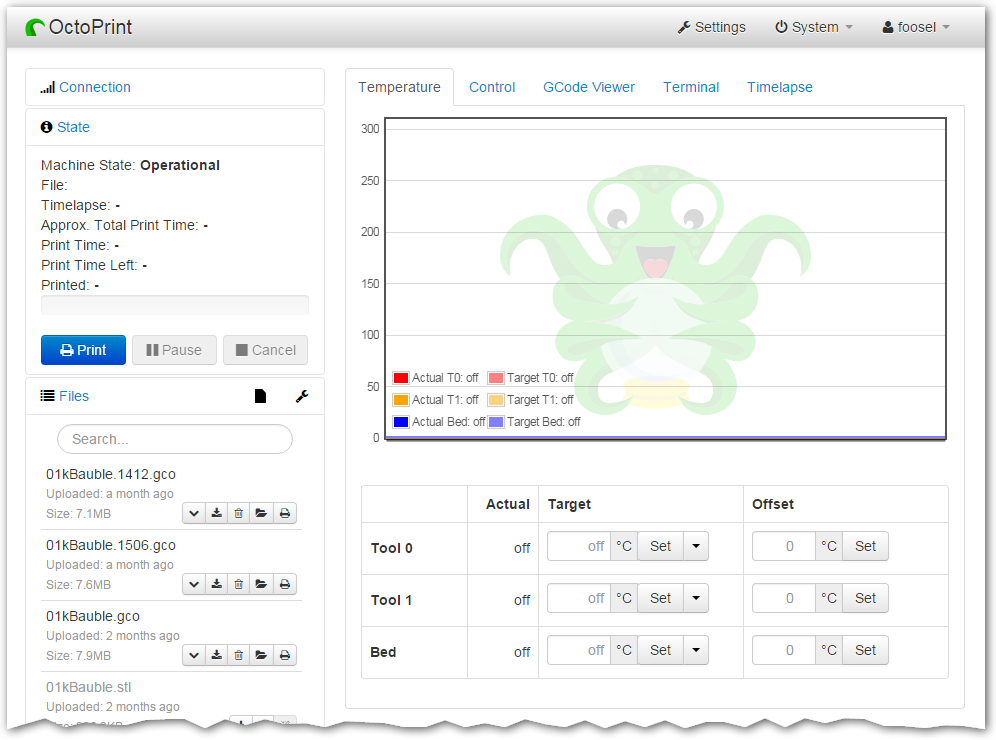
You are currently looking at the source code repository of OctoPrint. If you already installed it
(e.g. by using the Raspberry Pi targeted distribution [OctoPi](https://github.com/guysoft/OctoPi)) and only
want to find out how to use it, [the documentation](https://docs.octoprint.org/) might be of more interest for you. You might also want to subscribe to join
[the community forum at community.octoprint.org](https://community.octoprint.org) where there are other active users who might be
able to help you with any questions you might have.
## Contributing
Contributions of all kinds are welcome, not only in the form of code but also with regards to the
[official documentation](https://docs.octoprint.org/), debugging help
in the [bug tracker](https://github.com/OctoPrint/OctoPrint/issues), support of other users on
[the community forum at community.octoprint.org](https://community.octoprint.org) or
[the official discord at discord.octoprint.org](https://discord.octoprint.org)
and also [financially](https://octoprint.org/support-octoprint/?utm_source=github&utm_medium=readme).
If you think something is bad about OctoPrint or its documentation the way it is, please help
in any way to make it better instead of just complaining about it -- this is an Open Source Project
after all :)
For information about how to go about submitting bug reports or pull requests, please see the project's
[Contribution Guidelines](https://github.com/OctoPrint/OctoPrint/blob/master/CONTRIBUTING.md).
## Installation
Installation instructions for installing from source for different operating
systems can be found [on the forum](https://community.octoprint.org/tags/c/support/guides/15/setup).
If you want to run OctoPrint on a Raspberry Pi, you really should take a look at [OctoPi](https://github.com/guysoft/OctoPi)
which is a custom SD card image that includes OctoPrint plus dependencies.
The generic steps that should basically be done regardless of operating system
and runtime environment are the following (as *regular
user*, please keep your hands *off* of the `sudo` command here!) - this assumes
you already have Python 3.7+, pip and virtualenv and their dependencies set up on your system:
1. Create a user-owned virtual environment therein: `virtualenv venv`. If you want to specify a specific python
to use instead of whatever version your system defaults to, you can also explicitly require that via the `--python`
parameter, e.g. `virtualenv --python=python3 venv`.
2. Install OctoPrint *into that virtual environment*: `./venv/bin/pip install OctoPrint`
You may then start the OctoPrint server via `/path/to/OctoPrint/venv/bin/octoprint`, see [Usage](#usage)
for details.
After installation, please make sure you follow the first-run wizard and set up
access control as necessary.
## Dependencies
OctoPrint depends on a few python modules to do its job. Those are automatically installed when installing
OctoPrint via `pip`.
OctoPrint currently supports Python 3.7, 3.8, 3.9 and 3.10.
## Usage
Running the pip install via
pip install OctoPrint
installs the `octoprint` script in your Python installation's scripts folder
(which, depending on whether you installed OctoPrint globally or into a virtual env, will be in your `PATH` or not). The
following usage examples assume that the `octoprint` script is on your `PATH`.
You can start the server via
octoprint serve
By default it binds to all interfaces on port 5000 (so pointing your browser to `http://127.0.0.1:5000`
will do the trick). If you want to change that, use the additional command line parameters `host` and `port`,
which accept the host ip to bind to and the numeric port number respectively. If for example you want the server
to only listen on the local interface on port 8080, the command line would be
octoprint serve --host=127.0.0.1 --port=8080
Alternatively, the host and port on which to bind can be defined via the config file.
If you want to run OctoPrint as a daemon (only supported on Linux), use
octoprint daemon {start|stop|restart} [--pid PIDFILE]
If you do not supply a custom pidfile location via `--pid PIDFILE`, it will be created at `/tmp/octoprint.pid`.
You can also specify the config file or the base directory (for basing off the `uploads`, `timelapse` and `logs` folders),
e.g.:
octoprint serve --config /path/to/another/config.yaml --basedir /path/to/my/basedir
To start OctoPrint in safe mode - which disables all third party plugins that do not come bundled with OctoPrint - use
the ``--safe`` flag:
octoprint serve --safe
See `octoprint --help` for more information on the available command line parameters.
OctoPrint also ships with a `run` script in its source directory. You can invoke it to start the server. It
takes the same command line arguments as the `octoprint` script.
## Configuration
If not specified via the command line, the config file `config.yaml` for OctoPrint is expected in the settings folder,
which is located at `~/.octoprint` on Linux, at `%APPDATA%/OctoPrint` on Windows and
at `~/Library/Application Support/OctoPrint` on MacOS.
A comprehensive overview of all available configuration settings can be found
[in the docs](https://docs.octoprint.org/en/master/configuration/config_yaml.html).
Please note that the most commonly used configuration settings can also easily
be edited from OctoPrint's settings dialog.
## Special Thanks
Cross-browser testing services are kindly provided by [BrowserStack](https://www.browserstack.com/).
Profiling is done with the help of [PyVmMonitor](https://www.pyvmmonitor.com).
Error tracking is powered and sponsored by [Sentry](https://sentry.io).
%package -n python3-OctoPrint
Summary: The snappy web interface for your 3D printer
Provides: python-OctoPrint
BuildRequires: python3-devel
BuildRequires: python3-setuptools
BuildRequires: python3-pip
%description -n python3-OctoPrint
<p align="center"><img src="https://octoprint.org/assets/img/logo.png" alt="OctoPrint's logo" /></p>
<h1 align="center">OctoPrint</h1>
<p align="center">
<img src="https://img.shields.io/github/v/release/OctoPrint/OctoPrint?logo=github&logoColor=white" alt="GitHub release"/>
<img src="https://img.shields.io/pypi/v/OctoPrint?logo=python&logoColor=white" alt="PyPI"/>
<img src="https://img.shields.io/github/actions/workflow/status/OctoPrint/OctoPrint/build.yml?branch=master" alt="Build status"/>
<a href="https://community.octoprint.org"><img src="https://img.shields.io/discourse/users?label=forum&logo=discourse&logoColor=white&server=https%3A%2F%2Fcommunity.octoprint.org" alt="Community Forum"/></a>
<a href="https://discord.octoprint.org"><img src="https://img.shields.io/discord/704958479194128507?label=discord&logo=discord&logoColor=white" alt="Discord"/></a>
<a href="https://octoprint.org/conduct/"><img src="https://img.shields.io/badge/Contributor%20Covenant-v2.0%20adopted-ff69b4.svg" alt="Contributor Covenant"/></a>
<a href="https://github.com/psf/black"><img src="https://img.shields.io/badge/code%20style-black-000000.svg" alt="Code style: black"/></a>
<a href="https://github.com/prettier/prettier"><img src="https://img.shields.io/badge/code_style-prettier-ff69b4.svg?style=flat-square" alt="Code style: prettier"/></a>
<a href="https://pycqa.github.io/isort/"><img src="https://img.shields.io/badge/%20imports-isort-%231674b1" alt="Imports: isort"/></a>
<a href="https://github.com/pre-commit/pre-commit"><img src="https://img.shields.io/badge/pre--commit-enabled-brightgreen?logo=pre-commit&logoColor=white" alt="pre-commit"/></a>
</p>
OctoPrint provides a snappy web interface for controlling consumer 3D printers. It is Free Software
and released under the [GNU Affero General Public License V3](https://www.gnu.org/licenses/agpl-3.0.html).
Its website can be found at [octoprint.org](https://octoprint.org/?utm_source=github&utm_medium=readme).
The community forum is available at [community.octoprint.org](https://community.octoprint.org/?utm_source=github&utm_medium=readme). It also serves as a central knowledge base.
An invite to the Discord server can be found at [discord.octoprint.org](https://discord.octoprint.org).
The FAQ can be accessed by following [faq.octoprint.org](https://faq.octoprint.org/?utm_source=github&utm_medium=readme).
The documentation is located at [docs.octoprint.org](https://docs.octoprint.org).
The official plugin repository can be reached at [plugins.octoprint.org](https://plugins.octoprint.org/?utm_source=github&utm_medium=readme).
**OctoPrint's development wouldn't be possible without the [financial support by its community](https://octoprint.org/support-octoprint/?utm_source=github&utm_medium=readme).
If you enjoy OctoPrint, please consider becoming a regular supporter!**

You are currently looking at the source code repository of OctoPrint. If you already installed it
(e.g. by using the Raspberry Pi targeted distribution [OctoPi](https://github.com/guysoft/OctoPi)) and only
want to find out how to use it, [the documentation](https://docs.octoprint.org/) might be of more interest for you. You might also want to subscribe to join
[the community forum at community.octoprint.org](https://community.octoprint.org) where there are other active users who might be
able to help you with any questions you might have.
## Contributing
Contributions of all kinds are welcome, not only in the form of code but also with regards to the
[official documentation](https://docs.octoprint.org/), debugging help
in the [bug tracker](https://github.com/OctoPrint/OctoPrint/issues), support of other users on
[the community forum at community.octoprint.org](https://community.octoprint.org) or
[the official discord at discord.octoprint.org](https://discord.octoprint.org)
and also [financially](https://octoprint.org/support-octoprint/?utm_source=github&utm_medium=readme).
If you think something is bad about OctoPrint or its documentation the way it is, please help
in any way to make it better instead of just complaining about it -- this is an Open Source Project
after all :)
For information about how to go about submitting bug reports or pull requests, please see the project's
[Contribution Guidelines](https://github.com/OctoPrint/OctoPrint/blob/master/CONTRIBUTING.md).
## Installation
Installation instructions for installing from source for different operating
systems can be found [on the forum](https://community.octoprint.org/tags/c/support/guides/15/setup).
If you want to run OctoPrint on a Raspberry Pi, you really should take a look at [OctoPi](https://github.com/guysoft/OctoPi)
which is a custom SD card image that includes OctoPrint plus dependencies.
The generic steps that should basically be done regardless of operating system
and runtime environment are the following (as *regular
user*, please keep your hands *off* of the `sudo` command here!) - this assumes
you already have Python 3.7+, pip and virtualenv and their dependencies set up on your system:
1. Create a user-owned virtual environment therein: `virtualenv venv`. If you want to specify a specific python
to use instead of whatever version your system defaults to, you can also explicitly require that via the `--python`
parameter, e.g. `virtualenv --python=python3 venv`.
2. Install OctoPrint *into that virtual environment*: `./venv/bin/pip install OctoPrint`
You may then start the OctoPrint server via `/path/to/OctoPrint/venv/bin/octoprint`, see [Usage](#usage)
for details.
After installation, please make sure you follow the first-run wizard and set up
access control as necessary.
## Dependencies
OctoPrint depends on a few python modules to do its job. Those are automatically installed when installing
OctoPrint via `pip`.
OctoPrint currently supports Python 3.7, 3.8, 3.9 and 3.10.
## Usage
Running the pip install via
pip install OctoPrint
installs the `octoprint` script in your Python installation's scripts folder
(which, depending on whether you installed OctoPrint globally or into a virtual env, will be in your `PATH` or not). The
following usage examples assume that the `octoprint` script is on your `PATH`.
You can start the server via
octoprint serve
By default it binds to all interfaces on port 5000 (so pointing your browser to `http://127.0.0.1:5000`
will do the trick). If you want to change that, use the additional command line parameters `host` and `port`,
which accept the host ip to bind to and the numeric port number respectively. If for example you want the server
to only listen on the local interface on port 8080, the command line would be
octoprint serve --host=127.0.0.1 --port=8080
Alternatively, the host and port on which to bind can be defined via the config file.
If you want to run OctoPrint as a daemon (only supported on Linux), use
octoprint daemon {start|stop|restart} [--pid PIDFILE]
If you do not supply a custom pidfile location via `--pid PIDFILE`, it will be created at `/tmp/octoprint.pid`.
You can also specify the config file or the base directory (for basing off the `uploads`, `timelapse` and `logs` folders),
e.g.:
octoprint serve --config /path/to/another/config.yaml --basedir /path/to/my/basedir
To start OctoPrint in safe mode - which disables all third party plugins that do not come bundled with OctoPrint - use
the ``--safe`` flag:
octoprint serve --safe
See `octoprint --help` for more information on the available command line parameters.
OctoPrint also ships with a `run` script in its source directory. You can invoke it to start the server. It
takes the same command line arguments as the `octoprint` script.
## Configuration
If not specified via the command line, the config file `config.yaml` for OctoPrint is expected in the settings folder,
which is located at `~/.octoprint` on Linux, at `%APPDATA%/OctoPrint` on Windows and
at `~/Library/Application Support/OctoPrint` on MacOS.
A comprehensive overview of all available configuration settings can be found
[in the docs](https://docs.octoprint.org/en/master/configuration/config_yaml.html).
Please note that the most commonly used configuration settings can also easily
be edited from OctoPrint's settings dialog.
## Special Thanks
Cross-browser testing services are kindly provided by [BrowserStack](https://www.browserstack.com/).
Profiling is done with the help of [PyVmMonitor](https://www.pyvmmonitor.com).
Error tracking is powered and sponsored by [Sentry](https://sentry.io).
%package help
Summary: Development documents and examples for OctoPrint
Provides: python3-OctoPrint-doc
%description help
<p align="center"><img src="https://octoprint.org/assets/img/logo.png" alt="OctoPrint's logo" /></p>
<h1 align="center">OctoPrint</h1>
<p align="center">
<img src="https://img.shields.io/github/v/release/OctoPrint/OctoPrint?logo=github&logoColor=white" alt="GitHub release"/>
<img src="https://img.shields.io/pypi/v/OctoPrint?logo=python&logoColor=white" alt="PyPI"/>
<img src="https://img.shields.io/github/actions/workflow/status/OctoPrint/OctoPrint/build.yml?branch=master" alt="Build status"/>
<a href="https://community.octoprint.org"><img src="https://img.shields.io/discourse/users?label=forum&logo=discourse&logoColor=white&server=https%3A%2F%2Fcommunity.octoprint.org" alt="Community Forum"/></a>
<a href="https://discord.octoprint.org"><img src="https://img.shields.io/discord/704958479194128507?label=discord&logo=discord&logoColor=white" alt="Discord"/></a>
<a href="https://octoprint.org/conduct/"><img src="https://img.shields.io/badge/Contributor%20Covenant-v2.0%20adopted-ff69b4.svg" alt="Contributor Covenant"/></a>
<a href="https://github.com/psf/black"><img src="https://img.shields.io/badge/code%20style-black-000000.svg" alt="Code style: black"/></a>
<a href="https://github.com/prettier/prettier"><img src="https://img.shields.io/badge/code_style-prettier-ff69b4.svg?style=flat-square" alt="Code style: prettier"/></a>
<a href="https://pycqa.github.io/isort/"><img src="https://img.shields.io/badge/%20imports-isort-%231674b1" alt="Imports: isort"/></a>
<a href="https://github.com/pre-commit/pre-commit"><img src="https://img.shields.io/badge/pre--commit-enabled-brightgreen?logo=pre-commit&logoColor=white" alt="pre-commit"/></a>
</p>
OctoPrint provides a snappy web interface for controlling consumer 3D printers. It is Free Software
and released under the [GNU Affero General Public License V3](https://www.gnu.org/licenses/agpl-3.0.html).
Its website can be found at [octoprint.org](https://octoprint.org/?utm_source=github&utm_medium=readme).
The community forum is available at [community.octoprint.org](https://community.octoprint.org/?utm_source=github&utm_medium=readme). It also serves as a central knowledge base.
An invite to the Discord server can be found at [discord.octoprint.org](https://discord.octoprint.org).
The FAQ can be accessed by following [faq.octoprint.org](https://faq.octoprint.org/?utm_source=github&utm_medium=readme).
The documentation is located at [docs.octoprint.org](https://docs.octoprint.org).
The official plugin repository can be reached at [plugins.octoprint.org](https://plugins.octoprint.org/?utm_source=github&utm_medium=readme).
**OctoPrint's development wouldn't be possible without the [financial support by its community](https://octoprint.org/support-octoprint/?utm_source=github&utm_medium=readme).
If you enjoy OctoPrint, please consider becoming a regular supporter!**

You are currently looking at the source code repository of OctoPrint. If you already installed it
(e.g. by using the Raspberry Pi targeted distribution [OctoPi](https://github.com/guysoft/OctoPi)) and only
want to find out how to use it, [the documentation](https://docs.octoprint.org/) might be of more interest for you. You might also want to subscribe to join
[the community forum at community.octoprint.org](https://community.octoprint.org) where there are other active users who might be
able to help you with any questions you might have.
## Contributing
Contributions of all kinds are welcome, not only in the form of code but also with regards to the
[official documentation](https://docs.octoprint.org/), debugging help
in the [bug tracker](https://github.com/OctoPrint/OctoPrint/issues), support of other users on
[the community forum at community.octoprint.org](https://community.octoprint.org) or
[the official discord at discord.octoprint.org](https://discord.octoprint.org)
and also [financially](https://octoprint.org/support-octoprint/?utm_source=github&utm_medium=readme).
If you think something is bad about OctoPrint or its documentation the way it is, please help
in any way to make it better instead of just complaining about it -- this is an Open Source Project
after all :)
For information about how to go about submitting bug reports or pull requests, please see the project's
[Contribution Guidelines](https://github.com/OctoPrint/OctoPrint/blob/master/CONTRIBUTING.md).
## Installation
Installation instructions for installing from source for different operating
systems can be found [on the forum](https://community.octoprint.org/tags/c/support/guides/15/setup).
If you want to run OctoPrint on a Raspberry Pi, you really should take a look at [OctoPi](https://github.com/guysoft/OctoPi)
which is a custom SD card image that includes OctoPrint plus dependencies.
The generic steps that should basically be done regardless of operating system
and runtime environment are the following (as *regular
user*, please keep your hands *off* of the `sudo` command here!) - this assumes
you already have Python 3.7+, pip and virtualenv and their dependencies set up on your system:
1. Create a user-owned virtual environment therein: `virtualenv venv`. If you want to specify a specific python
to use instead of whatever version your system defaults to, you can also explicitly require that via the `--python`
parameter, e.g. `virtualenv --python=python3 venv`.
2. Install OctoPrint *into that virtual environment*: `./venv/bin/pip install OctoPrint`
You may then start the OctoPrint server via `/path/to/OctoPrint/venv/bin/octoprint`, see [Usage](#usage)
for details.
After installation, please make sure you follow the first-run wizard and set up
access control as necessary.
## Dependencies
OctoPrint depends on a few python modules to do its job. Those are automatically installed when installing
OctoPrint via `pip`.
OctoPrint currently supports Python 3.7, 3.8, 3.9 and 3.10.
## Usage
Running the pip install via
pip install OctoPrint
installs the `octoprint` script in your Python installation's scripts folder
(which, depending on whether you installed OctoPrint globally or into a virtual env, will be in your `PATH` or not). The
following usage examples assume that the `octoprint` script is on your `PATH`.
You can start the server via
octoprint serve
By default it binds to all interfaces on port 5000 (so pointing your browser to `http://127.0.0.1:5000`
will do the trick). If you want to change that, use the additional command line parameters `host` and `port`,
which accept the host ip to bind to and the numeric port number respectively. If for example you want the server
to only listen on the local interface on port 8080, the command line would be
octoprint serve --host=127.0.0.1 --port=8080
Alternatively, the host and port on which to bind can be defined via the config file.
If you want to run OctoPrint as a daemon (only supported on Linux), use
octoprint daemon {start|stop|restart} [--pid PIDFILE]
If you do not supply a custom pidfile location via `--pid PIDFILE`, it will be created at `/tmp/octoprint.pid`.
You can also specify the config file or the base directory (for basing off the `uploads`, `timelapse` and `logs` folders),
e.g.:
octoprint serve --config /path/to/another/config.yaml --basedir /path/to/my/basedir
To start OctoPrint in safe mode - which disables all third party plugins that do not come bundled with OctoPrint - use
the ``--safe`` flag:
octoprint serve --safe
See `octoprint --help` for more information on the available command line parameters.
OctoPrint also ships with a `run` script in its source directory. You can invoke it to start the server. It
takes the same command line arguments as the `octoprint` script.
## Configuration
If not specified via the command line, the config file `config.yaml` for OctoPrint is expected in the settings folder,
which is located at `~/.octoprint` on Linux, at `%APPDATA%/OctoPrint` on Windows and
at `~/Library/Application Support/OctoPrint` on MacOS.
A comprehensive overview of all available configuration settings can be found
[in the docs](https://docs.octoprint.org/en/master/configuration/config_yaml.html).
Please note that the most commonly used configuration settings can also easily
be edited from OctoPrint's settings dialog.
## Special Thanks
Cross-browser testing services are kindly provided by [BrowserStack](https://www.browserstack.com/).
Profiling is done with the help of [PyVmMonitor](https://www.pyvmmonitor.com).
Error tracking is powered and sponsored by [Sentry](https://sentry.io).
%prep
%autosetup -n OctoPrint-1.8.7
%build
%py3_build
%install
%py3_install
install -d -m755 %{buildroot}/%{_pkgdocdir}
if [ -d doc ]; then cp -arf doc %{buildroot}/%{_pkgdocdir}; fi
if [ -d docs ]; then cp -arf docs %{buildroot}/%{_pkgdocdir}; fi
if [ -d example ]; then cp -arf example %{buildroot}/%{_pkgdocdir}; fi
if [ -d examples ]; then cp -arf examples %{buildroot}/%{_pkgdocdir}; fi
pushd %{buildroot}
if [ -d usr/lib ]; then
find usr/lib -type f -printf "/%h/%f\n" >> filelist.lst
fi
if [ -d usr/lib64 ]; then
find usr/lib64 -type f -printf "/%h/%f\n" >> filelist.lst
fi
if [ -d usr/bin ]; then
find usr/bin -type f -printf "/%h/%f\n" >> filelist.lst
fi
if [ -d usr/sbin ]; then
find usr/sbin -type f -printf "/%h/%f\n" >> filelist.lst
fi
touch doclist.lst
if [ -d usr/share/man ]; then
find usr/share/man -type f -printf "/%h/%f.gz\n" >> doclist.lst
fi
popd
mv %{buildroot}/filelist.lst .
mv %{buildroot}/doclist.lst .
%files -n python3-OctoPrint -f filelist.lst
%dir %{python3_sitelib}/*
%files help -f doclist.lst
%{_docdir}/*
%changelog
* Tue Apr 11 2023 Python_Bot <Python_Bot@openeuler.org> - 1.8.7-1
- Package Spec generated
|
