
diff options
| author | CoprDistGit <infra@openeuler.org> | 2023-05-18 07:13:25 +0000 |
|---|---|---|
| committer | CoprDistGit <infra@openeuler.org> | 2023-05-18 07:13:25 +0000 |
| commit | 4af24b356682705a6ee2fab9dc9a6e7486fb73ab (patch) | |
| tree | 6f5f47ade533a9064c5e4729a8c0d4308929e6e0 /python-pympress.spec | |
| parent | ab4785aa766061d0eaa7ee5c86c046ed40b25211 (diff) | |
automatic import of python-pympress
Diffstat (limited to 'python-pympress.spec')
| -rw-r--r-- | python-pympress.spec | 873 |
1 files changed, 873 insertions, 0 deletions
diff --git a/python-pympress.spec b/python-pympress.spec new file mode 100644 index 0000000..865f233 --- /dev/null +++ b/python-pympress.spec @@ -0,0 +1,873 @@ +%global _empty_manifest_terminate_build 0 +Name: python-pympress +Version: 1.8.2 +Release: 1 +Summary: A simple and powerful dual-screen PDF reader designed for presentations +License: GPL-2.0-or-later +URL: https://github.com/Cimbali/pympress/ +Source0: https://mirrors.nju.edu.cn/pypi/web/packages/08/3f/9fd254a40155c8f51b52b045f5df16a794d21d4c3dfeb8c5d379671e72f1/pympress-1.8.2.tar.gz +BuildArch: noarch + +Requires: python3-watchdog +Requires: python3-importlib-resources +Requires: python3-babel +Requires: python3-babelgladeextractor +Requires: python3-Sphinx +Requires: python3-myst-parser +Requires: python3-sphinxcontrib-napoleon +Requires: python3-sphinx-rtd-theme +Requires: python3-vlc + +%description +#  What is Pympress? + +Pympress is a PDF presentation tool designed for dual-screen setups such as presentations and public talks. +Highly configurable, fully-featured, and portable + +It comes with many great features ([more below](#functionalities)): +- supports embedded gifs (out of the box), videos, and audios (with VLC or Gstreamer integration) +- text annotations displayed in the presenter window +- natively supports beamer's *notes on second screen*, as well as Libreoffice notes pages! + +Pympress is a free software, distributed under the terms of the GPL license (version 2 or, at your option, any later version). + +Pympress was originally created and maintained by [Schnouki](https://github.com/Schnouki), on [his repo](https://github.com/Schnouki/pympress). + +Here is what the 2 screen setup looks like, with a big notes slide next to 2 small slides (current and next) on the presenter side: +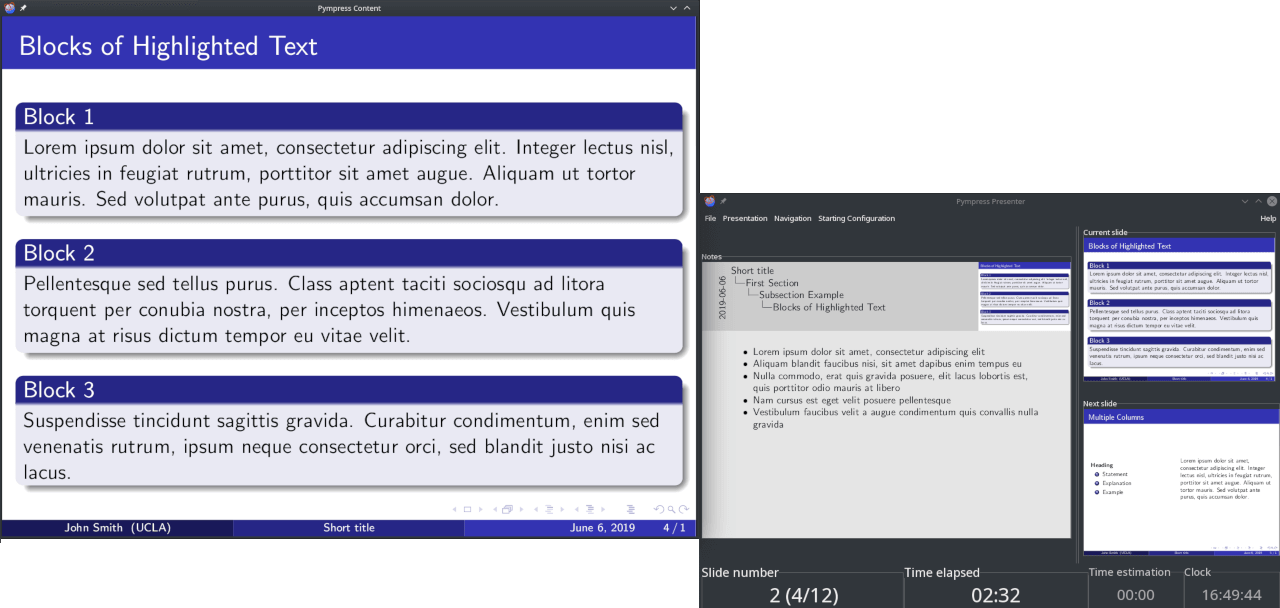 + +# Usage + +## Opening a file +Simply start Pympress and it will ask you what file you want to open. +You can also start pympress from the command line with a file to open like so: +`pympress slides.pdf` +or +`python3 -m pympress slides.pdf` + +## Functionalities + +All functionalities are available from the menus of the window with slide previews. Don't be afraid to experiment with them! + +Keyboard shortcuts are also listed in these menus. Some more usual shortcuts are often available, for example `Ctrl`+`L`, and `F11` also toggle fullscreen, though the main shortcut is just `F`. + +A few of the fancier functionalities are listed here: +- **Two-screen display**: See on your laptop or tablet display the current slide, the next slide, the talk time and wall-clock time, and annotations (either PDF annotations, beamer notes on second slide, or Libreoffice notes pages). + The position of the beamer or Libreoffice notes in the slide is detected automatically and can be overridden via a menu option. + + If you do not want to use second-slide beamer notes but prefer to have notes on their own pages, you can enable auto-detection of these notes. + Use the following snippet that prefixes the page labels with `notes:` on notes pages: + ```latex + \addtobeamertemplate{note page}{}{\thispdfpagelabel{notes:\insertframenumber}} + ``` +- **Media support**: supports playing video, audio, and gif files embedded in (or linked from) the PDF file, with optional start/end times and looping. +- **Highlight mode**: Allows one to draw freehand on the slide currently on screen. +- **Go To Slide**: To jump to a selected slide without flashing through the whole presentation on the projector, press `G` or click the "current slide" box. + Using `J` or clicking the slide label will allow you to navigate slide labels instead of page numbers, useful e.g. for multi-page slides from beamer `\pause`. + + A spin box will appear, and you will be able to navigate through your slides in the presenter window only by scrolling your mouse, with the `Home`/`Up`/`Down`/`End` keys, + with the + and - buttons of the spin box, or simply by typing in the number of the slide. Press `Enter` to validate going to the new slide or `Esc` to cancel. + +- **Deck Overview**: Pressing `D` will open an overview of your whole slide deck, and any slide can be opened from can simply clicking it. +- **Software pointer**: Clicking on the slide (in either window) while holding `ctrl` down will display a software laser pointer on the slide. Or press `L` to permanently switch on the laser pointer. +- **Talk time breakdown**: The `Presentation > Timing Breakdown` menu item displays a breakdown of how much time was spent on each slide, with a hierarchical breakdown per chapters/sections/etc. if available in the PDF. +- **Automatic file reloading**: If the file is modified, pympress will reload it (and preserve the current slide, current time, etc.) +- **Big button mode**: Add big buttons (duh) for touch displays. +- **Swap screens**: If Pympress mixed up which screen is the projector and which is not, press `S` +- **Automatic full screen**: pympress will automatically put the content window fullscreen on your non-primay screen when: + - connecting a second screen, + - extending your desktop to a second screen that was mirroring your main screen, + - when starting pympress on a two-screen display. + To disable this behaviour, untick “Content fullscreen” under the “Starting configuration” menu. +- **Estimated talk time**: Click the `Time estimation` box and set your planned talk duration. The color will allow you to see at a glance how much time you have left. +- **Adjust screen centering**: If your slides' form factor doesn't fit the projectors' and you don't want the slide centered in the window, use the "Screen Center" option in the "Presentation" menu. +- **Resize Current/Next slide**: You can drag the bar between both slides on the Presenter window to adjust their relative sizes to your liking. +- **Caching**: For efficiency, Pympress caches rendered pages (up to 200 by default). If this is too memory consuming for you, you can change this number in the configuration file. +- **Configurability**: Your preferences are saved in a configuration file, and many options are accessible there directly. These include: + - Customisable key bindings (or shortcuts), + - Configurable layout of the presenter window, with 1 to 16 next slides preview + - and many more. + + See the [configuration file documentation](docs/options.md) for more details, +- **Editable PDF annotations**: Annotations can be added, removed, or changed, and the modified PDF files can be saved +- **Automatic next slide and looping** + +## Command line arguments + +- `-h, --help`: Shows a list of all command line arguments. +- `-t mm[:ss], --talk-time=mm[:ss]`: The estimated (intended) talk time in minutes and optionally seconds. +- `-n position, --notes=position`: Set the position of notes on the pdf page (none, left, right, top, or bottom). Overrides the detection from the file. +- `--log=level`: Set level of verbosity in log file (DEBUG, INFO, WARNING, ERROR). + +## Media and autoplay + +To enable media playback, you need to have either: +- Gstreamer installed (enabled by default), with plugins gstreamer-good/-bad/-ugly based on which codecs you need, or +- VLC installed (and the python-vlc module), with `enabled = on` under the `[vlc]` section of your config file. + +On macOS, issues with the gstreamer brew formula may require users to set `GST_PLUGIN_SYSTEM_PATH` manually. For default homebrew configurations the value should be `/opt/homebrew/lib/gstreamer-1.0/`. Make sure to set this environmental variable globally, or pympress might not pick it up. + +To produce PDFs with media inclusion, the ideal method is to use beamer’s multimedia package, always with `\movie`: + +```latex +\documentclass{beamer} +\usepackage{multimedia} + +\begin{frame}{Just a mp4 here} + \centering + \movie[width=0.3\textwidth]{\includegraphics[width=0.9\textwidth]{frame1.png}}{movie.mp4} + + \movie[width=0.3\textwidth]{}{animation.gif} + + \movie[width=0.3\textwidth]{}{ding.ogg} +\end{frame} +``` + +If you desire autoplay, ensure you have pympress ≥ 1.7.0 and poppler ≥ 21.04, and use the `movie15` package as follows: + +```latex +\documentclass{beamer} +\usepackage{movie15} +\begin{document} + +\begin{frame} + \begin{center} + \includemovie[attach=false,autoplay,text={% + \includegraphics{files/mailto.png}% + }]{0.4\linewidth}{0.3\linewidth}{files/random.mpg} + \end{center} +\end{frame} + +\end{document} +``` + +# Dependencies + +Pympress relies on: +* Python (version ≥ 3.4, python 2.7 is supported only until pympress 1.5.1, and 3.x < 3.4 until v1.6.4). +* [Poppler](http://poppler.freedesktop.org/), the PDF rendering library. +* [Gtk+ 3](http://www.gtk.org/), a toolkit for creating graphical user interfaces, and [its dependencies](https://www.gtk.org/overview.php), specifically: + * [Cairo](https://www.cairographics.org/) (and python bindings for cairo), the graphics library which is used to pre-render and draw over PDF pages. + * Gdk, a lower-level graphics library to handle icons. +* [PyGi, the python bindings for Gtk+3](https://wiki.gnome.org/Projects/PyGObject). PyGi is also known as *pygobject3*, just *pygobject* or *python3-gi*. + * Introspection bindings for poppler may be shipped separately, ensure you have those as well (`typelib-1_0-Poppler-0_18` on OpenSUSE, `gir1.2-poppler-0.18` on Ubuntu) +* optionally [VLC](https://www.videolan.org/vlc/), to play videos (with the same bitness as Python) + and the [python-vlc](https://pypi.org/project/python-vlc/) bindings. +* optionally Gstreamer to play videos (which is a Gtk library) + +### On linux platforms +The dependencies are often installed by default, or easily available through your package or software manager. +For example, on ubuntu, you can run the following as root to make sure you have all the prerequisites *assuming you use python3*: + +```sh +apt-get install python3 python3-pip libgtk-3-0 libpoppler-glib8 libcairo2 python3-gi python3-cairo python3-gi-cairo gobject-introspection libgirepository-1.0-1 libgirepository1.0-dev gir1.2-gtk-3.0 gir1.2-poppler-0.18 +``` + +Different distributions might have different package naming conventions, for example the equivalent on OpenSUSE would be: + +```sh +zypper install python3 python3-pip libgtk-3-0 libpoppler-glib8 libcairo2 python3-gobject python3-gobject-Gdk python3-cairo python3-gobject-cairo typelib-1_0-GdkPixbuf-2_0 typelib-1_0-Gtk-3_0 typelib-1_0-Poppler-0_18 +``` + +On CentOS/RHEL/Fedora the dependencies would be: + +```sh +yum install python36 python3-pip gtk3 poppler-glib cairo gdk-pixbuf2 python3-gobject python3-cairo +``` + +And on Arch Linux: + +```sh +pacman -S --needed python python-pip gtk3 poppler cairo gobject-introspection poppler-glib python-gobject gst-plugin-gtk +``` + + +### On macOS + +Dependencies can be installed using [Homebrew](https://brew.sh/): + +```sh +brew install --only-dependencies pympress +``` + +### On windows +The [binary installer for windows](#installing-) comes with pympress and all its dependencies packaged. + +Alternately, in order to install from pypi or from source on windows, there are two ways to get the dependencies: + +1. using MSYS2 (replace x86_64 with i686 if you're using a 32 bit machine). + + **Warning:** this can take a substantial amount of disk size as it requires a full software distribution and building platform. + + ```sh + pacman -S --needed mingw-w64-x86_64-gtk3 mingw-w64-x86_64-cairo mingw-w64-x86_64-poppler mingw-w64-x86_64-python3 mingw-w64-x86_64-vlc python3-pip mingw-w64-x86_64-python3-pip mingw-w64-x86_64-python3-gobject mingw-w64-x86_64-python3-cairo + ``` + + This is also the strategy used to automate [builds on appveyor](https://github.com/Cimbali/pympress/tree/master/scripts/build_msi_mingw.sh). + +2. Using PyGobjectWin32. *Be sure to check the supported Python versions (up to 3.4 at the time of writing)*, they appear in the FEATURES list in the linked page. + - Install native [python for windows](https://www.python.org/downloads/windows/) + - Get GTK+3, Poppler and their python bindings by executing [the PyGi installer](https://sourceforge.net/projects/pygobjectwin32/). Be sure to tick all the necessary dependencies in the installer (Poppler, Cairo, Gdk-Pixbuf). + +Alternately, you can build your Gtk+3 stack from source using MSVC, see [the Gnome wiki](https://wiki.gnome.org/Projects/GTK+/Win32/MSVCCompilationOfGTKStack) and [this python script that compiles the whole Gtk+3 stack](https://github.com/wingtk/gvsbuild/). +This strategy has not been used successfully yet, due to problems building Poppler with its introspection bidings (i.e. typelib) − see [#109](https://github.com/Cimbali/pympress/issues/109). + +# Contributing + +Feel free to clone this repo and use it, modify it, redistribute it, etc, under the GPLv2+. +A [number of contributors](https://github.com/Cimbali/pympress/graphs/contributors) have taken part in the development of pympress and submitted pull requests to improve it. + +**Be respectful of everyone and keep this community friendly, welcoming, and harrasment-free. +Abusive behaviour will not be tolerated, and can be reported by email at me@cimba.li − wrongdoers may be permanently banned.** + +Pympress has inline sphinx documentation ([Google style](http://www.sphinx-doc.org/en/latest/ext/example_google.html), contains rst syntax), and the [docs generated from it are hosted on the github pages of this repo](https://pympress.github.io/). + +## Translations + + + + + + + + + + + +<!-- https://poeditor.com/docs/languages --> + +We thank the many contributors of translations: <!-- translator list --> +Agnieszka, +atsuyaw, +Cherrywoods, +Dongwang, +Estel-f, +Fabio Pagnotta, +Ferdinand Fichtner, +Frederik. blome, +FriedrichFröbel, +He. yifan. xs, +Jaroslav Svoboda, +Jeertmans, +Kristýna, +Leonvincenterd, +LogCreative, +Lorenzo. pacchiardi, +Luis Sibaja, +Marcin Dohnalik, +marquitul, +Morfit, +Mzn, +Nico, +Ogawa, +Paul, +Pierre BERTHOU, +polaksta, +Saulpierotti, +Shebangmed, +susobaco, +Tapia, +Tejas, +Timo Zhang, +Tkoyama010, +Toton95, +Vojta Netrh, +Vulpeculus, +and <!-- last translator --> Cimbali. + +If you also want to add or contribute to a translation, check [pympress’ page on POEditor](https://poeditor.com/join/project/nKfRxeN8pS). +Note that old strings are kept and tagged `removed`, to give context and keep continuity between translations of succcessive versions. +This means `removed` strings are unused and do not need translating. + +## Packages + +Official releases are made to [PyPI](https://pypi.org/) and with [github releases](https://github.com/Cimbali/pympress/releases). +The community maintains a number of other packages or recipes to install pympress (see [Install section](#installing-)). Any additions welcome. + + +%package -n python3-pympress +Summary: A simple and powerful dual-screen PDF reader designed for presentations +Provides: python-pympress +BuildRequires: python3-devel +BuildRequires: python3-setuptools +BuildRequires: python3-pip +%description -n python3-pympress +#  What is Pympress? + +Pympress is a PDF presentation tool designed for dual-screen setups such as presentations and public talks. +Highly configurable, fully-featured, and portable + +It comes with many great features ([more below](#functionalities)): +- supports embedded gifs (out of the box), videos, and audios (with VLC or Gstreamer integration) +- text annotations displayed in the presenter window +- natively supports beamer's *notes on second screen*, as well as Libreoffice notes pages! + +Pympress is a free software, distributed under the terms of the GPL license (version 2 or, at your option, any later version). + +Pympress was originally created and maintained by [Schnouki](https://github.com/Schnouki), on [his repo](https://github.com/Schnouki/pympress). + +Here is what the 2 screen setup looks like, with a big notes slide next to 2 small slides (current and next) on the presenter side: + + +# Usage + +## Opening a file +Simply start Pympress and it will ask you what file you want to open. +You can also start pympress from the command line with a file to open like so: +`pympress slides.pdf` +or +`python3 -m pympress slides.pdf` + +## Functionalities + +All functionalities are available from the menus of the window with slide previews. Don't be afraid to experiment with them! + +Keyboard shortcuts are also listed in these menus. Some more usual shortcuts are often available, for example `Ctrl`+`L`, and `F11` also toggle fullscreen, though the main shortcut is just `F`. + +A few of the fancier functionalities are listed here: +- **Two-screen display**: See on your laptop or tablet display the current slide, the next slide, the talk time and wall-clock time, and annotations (either PDF annotations, beamer notes on second slide, or Libreoffice notes pages). + The position of the beamer or Libreoffice notes in the slide is detected automatically and can be overridden via a menu option. + + If you do not want to use second-slide beamer notes but prefer to have notes on their own pages, you can enable auto-detection of these notes. + Use the following snippet that prefixes the page labels with `notes:` on notes pages: + ```latex + \addtobeamertemplate{note page}{}{\thispdfpagelabel{notes:\insertframenumber}} + ``` +- **Media support**: supports playing video, audio, and gif files embedded in (or linked from) the PDF file, with optional start/end times and looping. +- **Highlight mode**: Allows one to draw freehand on the slide currently on screen. +- **Go To Slide**: To jump to a selected slide without flashing through the whole presentation on the projector, press `G` or click the "current slide" box. + Using `J` or clicking the slide label will allow you to navigate slide labels instead of page numbers, useful e.g. for multi-page slides from beamer `\pause`. + + A spin box will appear, and you will be able to navigate through your slides in the presenter window only by scrolling your mouse, with the `Home`/`Up`/`Down`/`End` keys, + with the + and - buttons of the spin box, or simply by typing in the number of the slide. Press `Enter` to validate going to the new slide or `Esc` to cancel. + +- **Deck Overview**: Pressing `D` will open an overview of your whole slide deck, and any slide can be opened from can simply clicking it. +- **Software pointer**: Clicking on the slide (in either window) while holding `ctrl` down will display a software laser pointer on the slide. Or press `L` to permanently switch on the laser pointer. +- **Talk time breakdown**: The `Presentation > Timing Breakdown` menu item displays a breakdown of how much time was spent on each slide, with a hierarchical breakdown per chapters/sections/etc. if available in the PDF. +- **Automatic file reloading**: If the file is modified, pympress will reload it (and preserve the current slide, current time, etc.) +- **Big button mode**: Add big buttons (duh) for touch displays. +- **Swap screens**: If Pympress mixed up which screen is the projector and which is not, press `S` +- **Automatic full screen**: pympress will automatically put the content window fullscreen on your non-primay screen when: + - connecting a second screen, + - extending your desktop to a second screen that was mirroring your main screen, + - when starting pympress on a two-screen display. + To disable this behaviour, untick “Content fullscreen” under the “Starting configuration” menu. +- **Estimated talk time**: Click the `Time estimation` box and set your planned talk duration. The color will allow you to see at a glance how much time you have left. +- **Adjust screen centering**: If your slides' form factor doesn't fit the projectors' and you don't want the slide centered in the window, use the "Screen Center" option in the "Presentation" menu. +- **Resize Current/Next slide**: You can drag the bar between both slides on the Presenter window to adjust their relative sizes to your liking. +- **Caching**: For efficiency, Pympress caches rendered pages (up to 200 by default). If this is too memory consuming for you, you can change this number in the configuration file. +- **Configurability**: Your preferences are saved in a configuration file, and many options are accessible there directly. These include: + - Customisable key bindings (or shortcuts), + - Configurable layout of the presenter window, with 1 to 16 next slides preview + - and many more. + + See the [configuration file documentation](docs/options.md) for more details, +- **Editable PDF annotations**: Annotations can be added, removed, or changed, and the modified PDF files can be saved +- **Automatic next slide and looping** + +## Command line arguments + +- `-h, --help`: Shows a list of all command line arguments. +- `-t mm[:ss], --talk-time=mm[:ss]`: The estimated (intended) talk time in minutes and optionally seconds. +- `-n position, --notes=position`: Set the position of notes on the pdf page (none, left, right, top, or bottom). Overrides the detection from the file. +- `--log=level`: Set level of verbosity in log file (DEBUG, INFO, WARNING, ERROR). + +## Media and autoplay + +To enable media playback, you need to have either: +- Gstreamer installed (enabled by default), with plugins gstreamer-good/-bad/-ugly based on which codecs you need, or +- VLC installed (and the python-vlc module), with `enabled = on` under the `[vlc]` section of your config file. + +On macOS, issues with the gstreamer brew formula may require users to set `GST_PLUGIN_SYSTEM_PATH` manually. For default homebrew configurations the value should be `/opt/homebrew/lib/gstreamer-1.0/`. Make sure to set this environmental variable globally, or pympress might not pick it up. + +To produce PDFs with media inclusion, the ideal method is to use beamer’s multimedia package, always with `\movie`: + +```latex +\documentclass{beamer} +\usepackage{multimedia} + +\begin{frame}{Just a mp4 here} + \centering + \movie[width=0.3\textwidth]{\includegraphics[width=0.9\textwidth]{frame1.png}}{movie.mp4} + + \movie[width=0.3\textwidth]{}{animation.gif} + + \movie[width=0.3\textwidth]{}{ding.ogg} +\end{frame} +``` + +If you desire autoplay, ensure you have pympress ≥ 1.7.0 and poppler ≥ 21.04, and use the `movie15` package as follows: + +```latex +\documentclass{beamer} +\usepackage{movie15} +\begin{document} + +\begin{frame} + \begin{center} + \includemovie[attach=false,autoplay,text={% + \includegraphics{files/mailto.png}% + }]{0.4\linewidth}{0.3\linewidth}{files/random.mpg} + \end{center} +\end{frame} + +\end{document} +``` + +# Dependencies + +Pympress relies on: +* Python (version ≥ 3.4, python 2.7 is supported only until pympress 1.5.1, and 3.x < 3.4 until v1.6.4). +* [Poppler](http://poppler.freedesktop.org/), the PDF rendering library. +* [Gtk+ 3](http://www.gtk.org/), a toolkit for creating graphical user interfaces, and [its dependencies](https://www.gtk.org/overview.php), specifically: + * [Cairo](https://www.cairographics.org/) (and python bindings for cairo), the graphics library which is used to pre-render and draw over PDF pages. + * Gdk, a lower-level graphics library to handle icons. +* [PyGi, the python bindings for Gtk+3](https://wiki.gnome.org/Projects/PyGObject). PyGi is also known as *pygobject3*, just *pygobject* or *python3-gi*. + * Introspection bindings for poppler may be shipped separately, ensure you have those as well (`typelib-1_0-Poppler-0_18` on OpenSUSE, `gir1.2-poppler-0.18` on Ubuntu) +* optionally [VLC](https://www.videolan.org/vlc/), to play videos (with the same bitness as Python) + and the [python-vlc](https://pypi.org/project/python-vlc/) bindings. +* optionally Gstreamer to play videos (which is a Gtk library) + +### On linux platforms +The dependencies are often installed by default, or easily available through your package or software manager. +For example, on ubuntu, you can run the following as root to make sure you have all the prerequisites *assuming you use python3*: + +```sh +apt-get install python3 python3-pip libgtk-3-0 libpoppler-glib8 libcairo2 python3-gi python3-cairo python3-gi-cairo gobject-introspection libgirepository-1.0-1 libgirepository1.0-dev gir1.2-gtk-3.0 gir1.2-poppler-0.18 +``` + +Different distributions might have different package naming conventions, for example the equivalent on OpenSUSE would be: + +```sh +zypper install python3 python3-pip libgtk-3-0 libpoppler-glib8 libcairo2 python3-gobject python3-gobject-Gdk python3-cairo python3-gobject-cairo typelib-1_0-GdkPixbuf-2_0 typelib-1_0-Gtk-3_0 typelib-1_0-Poppler-0_18 +``` + +On CentOS/RHEL/Fedora the dependencies would be: + +```sh +yum install python36 python3-pip gtk3 poppler-glib cairo gdk-pixbuf2 python3-gobject python3-cairo +``` + +And on Arch Linux: + +```sh +pacman -S --needed python python-pip gtk3 poppler cairo gobject-introspection poppler-glib python-gobject gst-plugin-gtk +``` + + +### On macOS + +Dependencies can be installed using [Homebrew](https://brew.sh/): + +```sh +brew install --only-dependencies pympress +``` + +### On windows +The [binary installer for windows](#installing-) comes with pympress and all its dependencies packaged. + +Alternately, in order to install from pypi or from source on windows, there are two ways to get the dependencies: + +1. using MSYS2 (replace x86_64 with i686 if you're using a 32 bit machine). + + **Warning:** this can take a substantial amount of disk size as it requires a full software distribution and building platform. + + ```sh + pacman -S --needed mingw-w64-x86_64-gtk3 mingw-w64-x86_64-cairo mingw-w64-x86_64-poppler mingw-w64-x86_64-python3 mingw-w64-x86_64-vlc python3-pip mingw-w64-x86_64-python3-pip mingw-w64-x86_64-python3-gobject mingw-w64-x86_64-python3-cairo + ``` + + This is also the strategy used to automate [builds on appveyor](https://github.com/Cimbali/pympress/tree/master/scripts/build_msi_mingw.sh). + +2. Using PyGobjectWin32. *Be sure to check the supported Python versions (up to 3.4 at the time of writing)*, they appear in the FEATURES list in the linked page. + - Install native [python for windows](https://www.python.org/downloads/windows/) + - Get GTK+3, Poppler and their python bindings by executing [the PyGi installer](https://sourceforge.net/projects/pygobjectwin32/). Be sure to tick all the necessary dependencies in the installer (Poppler, Cairo, Gdk-Pixbuf). + +Alternately, you can build your Gtk+3 stack from source using MSVC, see [the Gnome wiki](https://wiki.gnome.org/Projects/GTK+/Win32/MSVCCompilationOfGTKStack) and [this python script that compiles the whole Gtk+3 stack](https://github.com/wingtk/gvsbuild/). +This strategy has not been used successfully yet, due to problems building Poppler with its introspection bidings (i.e. typelib) − see [#109](https://github.com/Cimbali/pympress/issues/109). + +# Contributing + +Feel free to clone this repo and use it, modify it, redistribute it, etc, under the GPLv2+. +A [number of contributors](https://github.com/Cimbali/pympress/graphs/contributors) have taken part in the development of pympress and submitted pull requests to improve it. + +**Be respectful of everyone and keep this community friendly, welcoming, and harrasment-free. +Abusive behaviour will not be tolerated, and can be reported by email at me@cimba.li − wrongdoers may be permanently banned.** + +Pympress has inline sphinx documentation ([Google style](http://www.sphinx-doc.org/en/latest/ext/example_google.html), contains rst syntax), and the [docs generated from it are hosted on the github pages of this repo](https://pympress.github.io/). + +## Translations + + + + + + + + + + + +<!-- https://poeditor.com/docs/languages --> + +We thank the many contributors of translations: <!-- translator list --> +Agnieszka, +atsuyaw, +Cherrywoods, +Dongwang, +Estel-f, +Fabio Pagnotta, +Ferdinand Fichtner, +Frederik. blome, +FriedrichFröbel, +He. yifan. xs, +Jaroslav Svoboda, +Jeertmans, +Kristýna, +Leonvincenterd, +LogCreative, +Lorenzo. pacchiardi, +Luis Sibaja, +Marcin Dohnalik, +marquitul, +Morfit, +Mzn, +Nico, +Ogawa, +Paul, +Pierre BERTHOU, +polaksta, +Saulpierotti, +Shebangmed, +susobaco, +Tapia, +Tejas, +Timo Zhang, +Tkoyama010, +Toton95, +Vojta Netrh, +Vulpeculus, +and <!-- last translator --> Cimbali. + +If you also want to add or contribute to a translation, check [pympress’ page on POEditor](https://poeditor.com/join/project/nKfRxeN8pS). +Note that old strings are kept and tagged `removed`, to give context and keep continuity between translations of succcessive versions. +This means `removed` strings are unused and do not need translating. + +## Packages + +Official releases are made to [PyPI](https://pypi.org/) and with [github releases](https://github.com/Cimbali/pympress/releases). +The community maintains a number of other packages or recipes to install pympress (see [Install section](#installing-)). Any additions welcome. + + +%package help +Summary: Development documents and examples for pympress +Provides: python3-pympress-doc +%description help +#  What is Pympress? + +Pympress is a PDF presentation tool designed for dual-screen setups such as presentations and public talks. +Highly configurable, fully-featured, and portable + +It comes with many great features ([more below](#functionalities)): +- supports embedded gifs (out of the box), videos, and audios (with VLC or Gstreamer integration) +- text annotations displayed in the presenter window +- natively supports beamer's *notes on second screen*, as well as Libreoffice notes pages! + +Pympress is a free software, distributed under the terms of the GPL license (version 2 or, at your option, any later version). + +Pympress was originally created and maintained by [Schnouki](https://github.com/Schnouki), on [his repo](https://github.com/Schnouki/pympress). + +Here is what the 2 screen setup looks like, with a big notes slide next to 2 small slides (current and next) on the presenter side: + + +# Usage + +## Opening a file +Simply start Pympress and it will ask you what file you want to open. +You can also start pympress from the command line with a file to open like so: +`pympress slides.pdf` +or +`python3 -m pympress slides.pdf` + +## Functionalities + +All functionalities are available from the menus of the window with slide previews. Don't be afraid to experiment with them! + +Keyboard shortcuts are also listed in these menus. Some more usual shortcuts are often available, for example `Ctrl`+`L`, and `F11` also toggle fullscreen, though the main shortcut is just `F`. + +A few of the fancier functionalities are listed here: +- **Two-screen display**: See on your laptop or tablet display the current slide, the next slide, the talk time and wall-clock time, and annotations (either PDF annotations, beamer notes on second slide, or Libreoffice notes pages). + The position of the beamer or Libreoffice notes in the slide is detected automatically and can be overridden via a menu option. + + If you do not want to use second-slide beamer notes but prefer to have notes on their own pages, you can enable auto-detection of these notes. + Use the following snippet that prefixes the page labels with `notes:` on notes pages: + ```latex + \addtobeamertemplate{note page}{}{\thispdfpagelabel{notes:\insertframenumber}} + ``` +- **Media support**: supports playing video, audio, and gif files embedded in (or linked from) the PDF file, with optional start/end times and looping. +- **Highlight mode**: Allows one to draw freehand on the slide currently on screen. +- **Go To Slide**: To jump to a selected slide without flashing through the whole presentation on the projector, press `G` or click the "current slide" box. + Using `J` or clicking the slide label will allow you to navigate slide labels instead of page numbers, useful e.g. for multi-page slides from beamer `\pause`. + + A spin box will appear, and you will be able to navigate through your slides in the presenter window only by scrolling your mouse, with the `Home`/`Up`/`Down`/`End` keys, + with the + and - buttons of the spin box, or simply by typing in the number of the slide. Press `Enter` to validate going to the new slide or `Esc` to cancel. + +- **Deck Overview**: Pressing `D` will open an overview of your whole slide deck, and any slide can be opened from can simply clicking it. +- **Software pointer**: Clicking on the slide (in either window) while holding `ctrl` down will display a software laser pointer on the slide. Or press `L` to permanently switch on the laser pointer. +- **Talk time breakdown**: The `Presentation > Timing Breakdown` menu item displays a breakdown of how much time was spent on each slide, with a hierarchical breakdown per chapters/sections/etc. if available in the PDF. +- **Automatic file reloading**: If the file is modified, pympress will reload it (and preserve the current slide, current time, etc.) +- **Big button mode**: Add big buttons (duh) for touch displays. +- **Swap screens**: If Pympress mixed up which screen is the projector and which is not, press `S` +- **Automatic full screen**: pympress will automatically put the content window fullscreen on your non-primay screen when: + - connecting a second screen, + - extending your desktop to a second screen that was mirroring your main screen, + - when starting pympress on a two-screen display. + To disable this behaviour, untick “Content fullscreen” under the “Starting configuration” menu. +- **Estimated talk time**: Click the `Time estimation` box and set your planned talk duration. The color will allow you to see at a glance how much time you have left. +- **Adjust screen centering**: If your slides' form factor doesn't fit the projectors' and you don't want the slide centered in the window, use the "Screen Center" option in the "Presentation" menu. +- **Resize Current/Next slide**: You can drag the bar between both slides on the Presenter window to adjust their relative sizes to your liking. +- **Caching**: For efficiency, Pympress caches rendered pages (up to 200 by default). If this is too memory consuming for you, you can change this number in the configuration file. +- **Configurability**: Your preferences are saved in a configuration file, and many options are accessible there directly. These include: + - Customisable key bindings (or shortcuts), + - Configurable layout of the presenter window, with 1 to 16 next slides preview + - and many more. + + See the [configuration file documentation](docs/options.md) for more details, +- **Editable PDF annotations**: Annotations can be added, removed, or changed, and the modified PDF files can be saved +- **Automatic next slide and looping** + +## Command line arguments + +- `-h, --help`: Shows a list of all command line arguments. +- `-t mm[:ss], --talk-time=mm[:ss]`: The estimated (intended) talk time in minutes and optionally seconds. +- `-n position, --notes=position`: Set the position of notes on the pdf page (none, left, right, top, or bottom). Overrides the detection from the file. +- `--log=level`: Set level of verbosity in log file (DEBUG, INFO, WARNING, ERROR). + +## Media and autoplay + +To enable media playback, you need to have either: +- Gstreamer installed (enabled by default), with plugins gstreamer-good/-bad/-ugly based on which codecs you need, or +- VLC installed (and the python-vlc module), with `enabled = on` under the `[vlc]` section of your config file. + +On macOS, issues with the gstreamer brew formula may require users to set `GST_PLUGIN_SYSTEM_PATH` manually. For default homebrew configurations the value should be `/opt/homebrew/lib/gstreamer-1.0/`. Make sure to set this environmental variable globally, or pympress might not pick it up. + +To produce PDFs with media inclusion, the ideal method is to use beamer’s multimedia package, always with `\movie`: + +```latex +\documentclass{beamer} +\usepackage{multimedia} + +\begin{frame}{Just a mp4 here} + \centering + \movie[width=0.3\textwidth]{\includegraphics[width=0.9\textwidth]{frame1.png}}{movie.mp4} + + \movie[width=0.3\textwidth]{}{animation.gif} + + \movie[width=0.3\textwidth]{}{ding.ogg} +\end{frame} +``` + +If you desire autoplay, ensure you have pympress ≥ 1.7.0 and poppler ≥ 21.04, and use the `movie15` package as follows: + +```latex +\documentclass{beamer} +\usepackage{movie15} +\begin{document} + +\begin{frame} + \begin{center} + \includemovie[attach=false,autoplay,text={% + \includegraphics{files/mailto.png}% + }]{0.4\linewidth}{0.3\linewidth}{files/random.mpg} + \end{center} +\end{frame} + +\end{document} +``` + +# Dependencies + +Pympress relies on: +* Python (version ≥ 3.4, python 2.7 is supported only until pympress 1.5.1, and 3.x < 3.4 until v1.6.4). +* [Poppler](http://poppler.freedesktop.org/), the PDF rendering library. +* [Gtk+ 3](http://www.gtk.org/), a toolkit for creating graphical user interfaces, and [its dependencies](https://www.gtk.org/overview.php), specifically: + * [Cairo](https://www.cairographics.org/) (and python bindings for cairo), the graphics library which is used to pre-render and draw over PDF pages. + * Gdk, a lower-level graphics library to handle icons. +* [PyGi, the python bindings for Gtk+3](https://wiki.gnome.org/Projects/PyGObject). PyGi is also known as *pygobject3*, just *pygobject* or *python3-gi*. + * Introspection bindings for poppler may be shipped separately, ensure you have those as well (`typelib-1_0-Poppler-0_18` on OpenSUSE, `gir1.2-poppler-0.18` on Ubuntu) +* optionally [VLC](https://www.videolan.org/vlc/), to play videos (with the same bitness as Python) + and the [python-vlc](https://pypi.org/project/python-vlc/) bindings. +* optionally Gstreamer to play videos (which is a Gtk library) + +### On linux platforms +The dependencies are often installed by default, or easily available through your package or software manager. +For example, on ubuntu, you can run the following as root to make sure you have all the prerequisites *assuming you use python3*: + +```sh +apt-get install python3 python3-pip libgtk-3-0 libpoppler-glib8 libcairo2 python3-gi python3-cairo python3-gi-cairo gobject-introspection libgirepository-1.0-1 libgirepository1.0-dev gir1.2-gtk-3.0 gir1.2-poppler-0.18 +``` + +Different distributions might have different package naming conventions, for example the equivalent on OpenSUSE would be: + +```sh +zypper install python3 python3-pip libgtk-3-0 libpoppler-glib8 libcairo2 python3-gobject python3-gobject-Gdk python3-cairo python3-gobject-cairo typelib-1_0-GdkPixbuf-2_0 typelib-1_0-Gtk-3_0 typelib-1_0-Poppler-0_18 +``` + +On CentOS/RHEL/Fedora the dependencies would be: + +```sh +yum install python36 python3-pip gtk3 poppler-glib cairo gdk-pixbuf2 python3-gobject python3-cairo +``` + +And on Arch Linux: + +```sh +pacman -S --needed python python-pip gtk3 poppler cairo gobject-introspection poppler-glib python-gobject gst-plugin-gtk +``` + + +### On macOS + +Dependencies can be installed using [Homebrew](https://brew.sh/): + +```sh +brew install --only-dependencies pympress +``` + +### On windows +The [binary installer for windows](#installing-) comes with pympress and all its dependencies packaged. + +Alternately, in order to install from pypi or from source on windows, there are two ways to get the dependencies: + +1. using MSYS2 (replace x86_64 with i686 if you're using a 32 bit machine). + + **Warning:** this can take a substantial amount of disk size as it requires a full software distribution and building platform. + + ```sh + pacman -S --needed mingw-w64-x86_64-gtk3 mingw-w64-x86_64-cairo mingw-w64-x86_64-poppler mingw-w64-x86_64-python3 mingw-w64-x86_64-vlc python3-pip mingw-w64-x86_64-python3-pip mingw-w64-x86_64-python3-gobject mingw-w64-x86_64-python3-cairo + ``` + + This is also the strategy used to automate [builds on appveyor](https://github.com/Cimbali/pympress/tree/master/scripts/build_msi_mingw.sh). + +2. Using PyGobjectWin32. *Be sure to check the supported Python versions (up to 3.4 at the time of writing)*, they appear in the FEATURES list in the linked page. + - Install native [python for windows](https://www.python.org/downloads/windows/) + - Get GTK+3, Poppler and their python bindings by executing [the PyGi installer](https://sourceforge.net/projects/pygobjectwin32/). Be sure to tick all the necessary dependencies in the installer (Poppler, Cairo, Gdk-Pixbuf). + +Alternately, you can build your Gtk+3 stack from source using MSVC, see [the Gnome wiki](https://wiki.gnome.org/Projects/GTK+/Win32/MSVCCompilationOfGTKStack) and [this python script that compiles the whole Gtk+3 stack](https://github.com/wingtk/gvsbuild/). +This strategy has not been used successfully yet, due to problems building Poppler with its introspection bidings (i.e. typelib) − see [#109](https://github.com/Cimbali/pympress/issues/109). + +# Contributing + +Feel free to clone this repo and use it, modify it, redistribute it, etc, under the GPLv2+. +A [number of contributors](https://github.com/Cimbali/pympress/graphs/contributors) have taken part in the development of pympress and submitted pull requests to improve it. + +**Be respectful of everyone and keep this community friendly, welcoming, and harrasment-free. +Abusive behaviour will not be tolerated, and can be reported by email at me@cimba.li − wrongdoers may be permanently banned.** + +Pympress has inline sphinx documentation ([Google style](http://www.sphinx-doc.org/en/latest/ext/example_google.html), contains rst syntax), and the [docs generated from it are hosted on the github pages of this repo](https://pympress.github.io/). + +## Translations + + + + + + + + + + + +<!-- https://poeditor.com/docs/languages --> + +We thank the many contributors of translations: <!-- translator list --> +Agnieszka, +atsuyaw, +Cherrywoods, +Dongwang, +Estel-f, +Fabio Pagnotta, +Ferdinand Fichtner, +Frederik. blome, +FriedrichFröbel, +He. yifan. xs, +Jaroslav Svoboda, +Jeertmans, +Kristýna, +Leonvincenterd, +LogCreative, +Lorenzo. pacchiardi, +Luis Sibaja, +Marcin Dohnalik, +marquitul, +Morfit, +Mzn, +Nico, +Ogawa, +Paul, +Pierre BERTHOU, +polaksta, +Saulpierotti, +Shebangmed, +susobaco, +Tapia, +Tejas, +Timo Zhang, +Tkoyama010, +Toton95, +Vojta Netrh, +Vulpeculus, +and <!-- last translator --> Cimbali. + +If you also want to add or contribute to a translation, check [pympress’ page on POEditor](https://poeditor.com/join/project/nKfRxeN8pS). +Note that old strings are kept and tagged `removed`, to give context and keep continuity between translations of succcessive versions. +This means `removed` strings are unused and do not need translating. + +## Packages + +Official releases are made to [PyPI](https://pypi.org/) and with [github releases](https://github.com/Cimbali/pympress/releases). +The community maintains a number of other packages or recipes to install pympress (see [Install section](#installing-)). Any additions welcome. + + +%prep +%autosetup -n pympress-1.8.2 + +%build +%py3_build + +%install +%py3_install +install -d -m755 %{buildroot}/%{_pkgdocdir} +if [ -d doc ]; then cp -arf doc %{buildroot}/%{_pkgdocdir}; fi +if [ -d docs ]; then cp -arf docs %{buildroot}/%{_pkgdocdir}; fi +if [ -d example ]; then cp -arf example %{buildroot}/%{_pkgdocdir}; fi +if [ -d examples ]; then cp -arf examples %{buildroot}/%{_pkgdocdir}; fi +pushd %{buildroot} +if [ -d usr/lib ]; then + find usr/lib -type f -printf "/%h/%f\n" >> filelist.lst +fi +if [ -d usr/lib64 ]; then + find usr/lib64 -type f -printf "/%h/%f\n" >> filelist.lst +fi +if [ -d usr/bin ]; then + find usr/bin -type f -printf "/%h/%f\n" >> filelist.lst +fi +if [ -d usr/sbin ]; then + find usr/sbin -type f -printf "/%h/%f\n" >> filelist.lst +fi +touch doclist.lst +if [ -d usr/share/man ]; then + find usr/share/man -type f -printf "/%h/%f.gz\n" >> doclist.lst +fi +popd +mv %{buildroot}/filelist.lst . +mv %{buildroot}/doclist.lst . + +%files -n python3-pympress -f filelist.lst +%dir %{python3_sitelib}/* + +%files help -f doclist.lst +%{_docdir}/* + +%changelog +* Thu May 18 2023 Python_Bot <Python_Bot@openeuler.org> - 1.8.2-1 +- Package Spec generated |